+ Reply to Thread
Results 1 to 5 of 5
  1. #1
    Newbie
    Join Date
    Apr 2011
    Posts
    2
    Thanks
    0
    Thanked 0 Times in 0 Posts

    How to curve text within a paragraph text block that is a predefined shape.

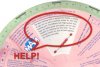
    Does anyone know how to curve text within a shape, as paragraph text, not artistic text? (See my attached image.)

    How to curve text within a paragraph text block that is a predefined shape.-curved-para-text.jpg
    I have drawn the shape, inserted the text as paragraph text, but the text always wants to sit in a straight line. I am so frustrated as I can't seem to find a workaround in either Corel or Adobe CS products. I have tried using artistic text in Corel, but I have to do it text line by text line - and this brings other problems, such as 1) I cant justify each line with each other, and 2) sometimes a character jumps up relative to the other characters and 3) the entire paragraph does not taper in...so this is not a solution, apart from the fact it will take me FOREVER to insert line by line....I would like to treat the text as a multiple line paragraph, and follow the shape.

    Somebody suggested that I use the envelope/warp tool, but this warps the actual text - I just want plain old text running along a curve in a multiline paragraph.

    So, to all you brilliant designers out there....PLEASE HELP! I will be forever grateful to get to the bottom of this little design challenge! Thanx!
  2. #2
    Newbie
    Join Date
    Apr 2011
    Posts
    2
    Thanks
    0
    Thanked 0 Times in 0 Posts

    Re: How to curve text within a paragraph text block that is a predefined shape.

    How to curve text within a paragraph text block that is a predefined shape.-curved-para-text.jpg Seems the image did not attach last time, so here it is again...hope you guys can see it

  3. #3
    Forum Mod
    Join Date
    Mar 2002
    Location
    Here... ?
    Posts
    4,990
    Thanks
    10
    Thanked 191 Times in 189 Posts

    Re: How to curve text within a paragraph text block that is a predefined shape.

    First off.... it can be done in PS but done line by line.... that's as far as what I know about this trick.... Unless someone has a better idea that I don't know of..... Even in Corel, it is done the same way but it does have it's problems like what you said......

    It is done by creating a path and typing the text directly on the working path. Here's a tutorial on how to do it... Photoshop Text Path - Free Adobe Photoshop CS CS2 Text Tutorials - Photoshop Essentials

    Now to get your effect, you'll have to take the above tute and go one step further .... which means you have to create a series of paths by copy to new layer . You also have to type the text in separate lines to fit the shape which means you have to "eye-ball" this one.... to get the taper look right....

    I don't have a tutorial but I'll post a few images later to describe what I mean....
    Last edited by dv8_fx; 04-28-2011 at 10:12 AM.

  4. #4
    Forum Mod
    Join Date
    Mar 2002
    Location
    Here... ?
    Posts
    4,990
    Thanks
    10
    Thanked 191 Times in 189 Posts

    Re: How to curve text within a paragraph text block that is a predefined shape.

    Here you go....

    How to curve text within a paragraph text block that is a predefined shape.-2011-04-28_220109.jpg

    How to curve text within a paragraph text block that is a predefined shape.-2011-04-28_220508.jpg

  5. #5
    Forum Mod
    Join Date
    Mar 2002
    Location
    Here... ?
    Posts
    4,990
    Thanks
    10
    Thanked 191 Times in 189 Posts

    Re: How to curve text within a paragraph text block that is a predefined shape.

    This was quickly done.

    I used the elliptical tool to create the shape to convert to a path . Each of the paths in each layer are of the same size and aligned in the middle. Words are adjusted manually - one word doesn't fit in the line, hilight, cut and paste it down to the next line (path).

    To copy the path with the first line to a new layer ( I don't know if your PSversion can do this ) select pointer tool, first click/hold down ALT , click/ hold down the text and drag it downwards. This wll copy the path and the text to a new layer. Just hilight the text and type or paste new text....

    To manipulate the type on a path, switch to the direct selection tool or the path selection tool. You can drag the type to move it along the path. To get everything in shape you may have to adjust each line of text on each path individually. .... settings with text kerning or using the spacebar to get the text lines centered and to taper uniformly..... move the path's vertical position to get uniform spacing between lines.... don't use the justify to center. As I said, eye-ball this one.

    Why my text in gray? I was rushing the images and failed to set the font color to full black.... lol..
    Last edited by dv8_fx; 04-28-2011 at 01:52 PM.


Tags for this Thread

Posting Permissions

  • You may not post new threads
  • You may not post replies
  • You may not post attachments
  • You may not edit your posts
Powered by vBulletin® Version 4.1.9
Copyright © 2012 vBulletin Solutions, Inc. All rights reserved.
Content Relevant URLs by vBSEO 3.6.0
Copyright 2011 Photoshop Gurus Forum. All rights reserved.
All times are GMT -5. The time now is 09:35 PM.
vBulletin Skins