

Hello folks, in this tutorial we will be looking at how to create custom brushes in photoshop. We will use an image of clouds to enable us to paint with FIRE!! Should be fun.
Open up your clouds image, you can use the image provided with the tutorial, if you are not a member of the site please sign up for access to all the downloadable content.
Step 1:
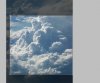
Select the portion of the clouds you wish to define as a custom brush, we are looking for lots of depth and detail in the cloud image. Here is what I selected:
Step 2:
Now we want to find a channel with good contrasting details in order to define the brush. For my selection the "red" channel was the best fit, so right click and choose duplicate channel or drag the the channel down to the "new channel" button at the bottom of the channels pallet.

Now go up to "Image/Adjustments/Invert" or hit "command/control+I".
Now we want to feather or results with the gradient tool, select the gradient tool and set it to foreground to transparent with White as the foreground color, and set the "mode" to "overlay". Drag the gradient into the image from all four sides, you may need to do multiple passes to get a good solid white border around the image.
Alternatively, you could use a brush with a very soft edge and paint the edges of the image with white.
Lastly we want to brighten up the image with a levels adjustment, so choose "Image/Adjustments/Levels" and just bump up the brightness of the image a little. Here is what we should be looking at:
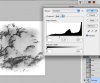
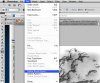
When you are satisfied with the results, go to "Edit/Define as Brush" and name the new brush "Fire Brush"
Step3:
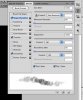
Now select your new brush from the brushes pallet, it should be at the very bottom of the list. You can paint with it to see what it does but we need to set some peramiters up for our fire effect, so lets open up our brush presets, and choose brush, "Window/Brush Presets/Brush"
The options we want are "Shape dynamics" is on, in shape dynamics, set the "Size Jitter" to 100% and the "Angle Jitter" to 100%, and then turn on the "Transfer" options and set "Opacity Jitter" to 100%
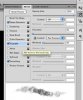
That is it, you have a nasty fire brush!! Now we need to add some Fire!
Step 4:
Create a new empty layer, and double click in the open area near the layer name to bring up the "layer style" pallet.
Set the "outter glow" to a nice hot red, and set the blend mode to "hard light" with 100% opacity.
Set the "inner glow" to a nice bright orange, and blend mode to "hard light" with 100% opacity.
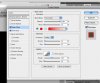
Thats it folks! Just make sure you are painting with White as your foreground color and you will be set.
Thanks for viewing this tutorial, hope you found it helpful.
Last edited:

