
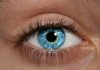
A facebook friend asked if I could do a tutorial on eyes, he said he wanted to change eye color play with light and that type of thing, so this si what I came up with. Hope you enjoy it. If you have any question please feel free to ask.
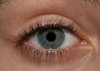
Step one:
Select a soft brush thats roughly the size of the iris,
Hit the "Q" key to enter Quick mask mode.
Paint around the iris and hit "Q" to exit quick mask mode.
Now add a Color balance adjustment layer to change the color of the iris.
Play with the sliders to taste, also there are highlight and shadow sliders to play with.
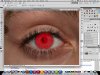
Step two:
Add a curves adjustment layer, and bump up the brightness i used these numbers
Output: 145
Input: 120
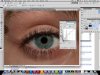
Step 3:
Add 2 more curves adjustment layers and don't do anything to these layers except for one change the blend mode to "color dodge" and the second "color burn"
Select the masks for each layer and fill them with black, or hit command or control on the PC and "I" to invert.
put the color burn layer on top of the color doge layer.
Step 4:
With a small soft brush change the opacity to 50 and flow to 50 and paint in the layer mask to revel the color dodge layer.
And then with a mush smaller brush paint in around the very otter edge of the iris on the color burn layer.
Step 5:
Create a blank layer and hit the "Q" key to enter quick mask mode.
Paint around the whites of the eyes and then "Q" again to exit quick mask mode.
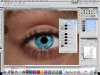
Then create a Hue/Saturation adjustment layer and target just the "red" channel.
And drag the saturation slider to -75 or so.
Then clean up your mask so only the whites are effected by the layer.
Step 6:
On the new empty layer you created, you can clone stamp some the the veins out of the whites. just use a soft brush that is a nice size to have a good soft edge.
Just make sure your clone stamp is sampling all layers.
If it looks to plasticky or fake you can lower the layers opacity.
Step 7:
Now add another Curves adjustment layer to brighten up the whites, in the layer mask make sure you are only brighting the whites.
Step 8:
Finally create a new layer, select the elliptical marque tool, set a feather to 2 or 3 in the options bar at the top, and shift drag a small highlight over the iris, where you see fit. and fill it with white.
That's all.
Thanks guys, check my sig at the bottom for the website which has loads of great content


