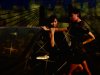
This is the topic I'm most interested in as a photographer, and how to make the pic pop out has always been my consideration. Here I combined one of my shots with different elements hoping something beautiful can come out.
Though the final result looks fine too me (but please any comment is welcome ), I found it difficult to make the main subject look like they're in the night. I had no clue how to hide the highlights in the faces and the top of the car. Any suggestions?
Hope you don't mind but i did this.
All i did was cut them out put them on the bridges and do a couple of multiply passes and play around with the settings.
Try using the levels adjustment layers,play whit the sliders increasing shadows for nightly effect or highlights for day effect, that will be the easiest and effective way to create that type of effects, also don't forget to use the layer mask, for precise adjustment effect control by painting on it to hide or reveal fx "black or white colors"
Also try using the unsharp mask under filters>Sharpen, and Filters>Other>high pass those are some of the filters being overlooked by most of us and it will allow you to create pretty awesome effects on your pics
Ok I played with this a lot infact almost an hour very rare for me to spend that much time on a project I dont think it is how you want it but I will try and explain how I did it (maybe I should have written it down)
Ok I am aware your not interested in the background but I had to do it so I could see the whole image and match colours etc
ok obviously you know the 2 background images are darkened and blurred etc so I will only concentrate on the girls and car layer
first I tweaked the exposure down slightly
also bought the curves down slightly but slightly increased the red channel to get the night glow on their skin
then I did a levels adjustment bringing the blacks in stronger and slide the middle slider across to darken the image
then adjusted the vibrance and hue saturation to get the night glow style
then I went to image > adjustment shadow and highlights cranked the shadows up and reduced the highlights and repeated a couple of times
I added a 50% grey layer and set blending mode to colour and reduced opacity
and the rest is all manageable to your style as for the bleached effect and washed out
Thanks Vafann for the nice and concise tut! The black cover magic definitely complemented my previous knowledge about turning day into night. The ways I knew such as using a level adjustment layer didn't quite help in my case here, but the black cover way gave me another hint.
Hope you don't mind but i did this.
All i did was cut them out put them on the bridges and do a couple of multiply passes and play around with the settings.
lol the picture with girls inside definitely is a nice material to play with
Try using the levels adjustment layers,play whit the sliders increasing shadows for nightly effect or highlights for day effect, that will be the easiest and effective way to create that type of effects, also don't forget to use the layer mask, for precise adjustment effect control by painting on it to hide or reveal fx "black or white colors"
Also try using the unsharp mask under filters>Sharpen, and Filters>Other>high pass those are some of the filters being overlooked by most of us and it will allow you to create pretty awesome effects on your pics
Hope this helps.
Thanks $......$ (typing your name is such a project....jokin) ! Yeah I tried to use level adjustment but the face will go pale altogether and don't look like human...I should have used mask to fine control definitely, but sometimes after playing with a huge psd file (it went 1GB in the end) you just lose the patience you need..I'll put my result later.
Sharpen is a great tool, I should've used it. Haven't used high pass filter before, but will give it a shot. I guess in this modern fashion type photo they should be helpful.