+ Reply to Thread
Results 1 to 6 of 6
  1. #1
    Newbie
    Join Date
    Jul 2010
    Posts
    3
    Thanks
    0
    Thanked 0 Times in 0 Posts

    Unhappy How Do I insert an animated GIF into an existing PSD?

    I tried what I have below. But it only lets me open it. It won't let me insert it into the existing PSD that I have. Can someone please help??

    1. Convert .gif to .mov in fireworks:
    In fireworks: open>(select file)>save as (animated gif) (no extension)>close
    (find the file and add extension .mov)
    2. Then:
    In psd>open>(select .mov file from fireworks) format must be set to quicktime movie in open box, enable: all readable documents>open (it should come in as a move with no frames, but should be animated)
    3. Then:
    resave as .mov from psd:
    File>export>render video>(quick time export:quicktime movie)>(rename)>render
    4. Then:
    Importing movies to photohsop:
    file>import>video frames to layers>(select file)>(to limit frames) select range only>(shift key to set slider to frames to limit movie to)>ok
    5. Then: edit frames and save as animated gif:
    File>save for web and devices>gif>(rename)>save
    6. Be sure to save a psd version to re-edit latter if desired.

  2. #2
    Guru
    Join Date
    Apr 2002
    Posts
    1,551
    Thanks
    0
    Thanked 36 Times in 13 Posts

    Edit a GIF Image in Photoshop that has Locked Pixels

    Probably the pixels are locked on the gif. Try following these steps:

    1. Open the gif image in Adobe Photoshop
    2. Press Ctr+A to Select All (or choose Select -> All from the menu)
    3. Press Ctr+C (or choose Edit -> Copy from the menu)
    4. Press Ctr+N (File -> New) to make a New Document
    5. Press Ctr+V (Edit -> Paste) to paste the image into the new document.

    now it should be on it's own layer and you can edit it, or Right Click on the layer and choose Duplicate Layer and then send it over to your other PSD.

  3. #3
    Newbie
    Join Date
    Jul 2010
    Posts
    3
    Thanks
    0
    Thanked 0 Times in 0 Posts
    Quote Originally Posted by Gaussian View Post
    Probably the pixels are locked on the gif. Try following these steps:

    1. Open the gif image in Adobe Photoshop
    2. Press Ctr+A to Select All (or choose Select -> All from the menu)
    3. Press Ctr+C (or choose Edit -> Copy from the menu)
    4. Press Ctr+N (File -> New) to make a New Document
    5. Press Ctr+V (Edit -> Paste) to paste the image into the new document.

    now it should be on it's own layer and you can edit it, or Right Click on the layer and choose Duplicate Layer and then send it over to your other PSD.
    After I select all, it won't let me copy.

    Edit: I've been able to get it as its own layer into a psd. But when i do that, it's not animated. I want to import the gif into the psd and keep it's animation
    Last edited by Devious-Graphics; 07-23-2010 at 10:11 PM.

  4. #4
    Guru
    Join Date
    Feb 2002
    Posts
    1,177
    Thanks
    0
    Thanked 4 Times in 1 Post
    What version of Photoshop are you using, and is it the extended version?

  5. #5
    Newbie
    Join Date
    Jul 2010
    Posts
    3
    Thanks
    0
    Thanked 0 Times in 0 Posts
    It's CS5 and it is the extended version.

    I found a link that says it's possible with CS5 ( John Nack on Adobe : Animated GIF import is back in CS5 )

    Is it possible, if so, how? Please Help, I'm going crazy trying to figure this out.

  6. #6
    Newbie
    Join Date
    Apr 2011
    Posts
    1
    Thanks
    0
    Thanked 0 Times in 0 Posts

    Re: How Do I insert an animated GIF into an existing PSD?

    Hi! i had the same problem and googled it but found no answer. somehow i found the solution. i am using CS4.

    1. open the PSD of the Gif file you want to copy.
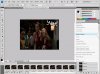
    2. On the Animation window select the frames you want to copy. You can select all frames by:
    How Do I insert an animated GIF into an existing PSD?-tut.jpg
    3. Then on the same menu select Copy Frames.
    4. Go to the PSD where you want to insert the frames you copy. Then from the same menu select Paste Frames.

    Voila!

    If you want to move the position of the layers you just copied, select the layers you want to move then select Move Tool in the Toolbox then drag to the position you desired.

    A bit late but to those seeking the answers like me hope this helps.


Posting Permissions

  • You may not post new threads
  • You may not post replies
  • You may not post attachments
  • You may not edit your posts
Powered by vBulletin® Version 4.1.9
Copyright © 2012 vBulletin Solutions, Inc. All rights reserved.
Content Relevant URLs by vBSEO 3.6.0
Copyright 2011 Photoshop Gurus Forum. All rights reserved.
All times are GMT -5. The time now is 12:36 PM.
vBulletin Skins