3Likes
-
1
Post By Lisa in GA
-
1
Post By Lisa in GA
-
1
Post By Lisa in GA
-
Junior Member
Need to learn how to draw a non-animated Graphic Equalizer
Hi!
I have been searching all over the internet on how to draw anon-animated graphic equalizer image, and every search only turns up tutorials on how to make an animated one! I'm a complete newbie, and would greatly appreciate some help. Since I am just learning Photoshop, details on the steps would be wonderful. Is there a tutorial anywhere by chance? I have attached pictures of what I'm trying to learn. I am most interested in the one that has the equalizer over the words, but would like to learn both, or maybe the technique is the same???
Thanks so much for your help!
Lisa
-
-
Forum Mod
Re: Need to learn how to draw a non-animated Graphic Equalizer
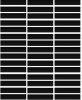
That would be a mix of brushes and blending modes if I was to make that I would use make a brush like this.

select all then go to edit> define brush preset and that will now be your last brush in your brush shapes tool bar.
create new document background colour black
create a new layer and select your new equalizer brush
size the brush and paint where you want the rectangles in any colour other than black/white preferably grey
create a new layer and set the blending mode to colour maybe as a base draw a gradient over with the colours you want
and then download a set of light / spotlight brushes and apply a light stroke to each equalizer panel on a new layer
copy last 3 layers and paste it and then flip it vertically and make sure they join at the middle then merge the top 6 layers if you wish
copy the merged layer and paste it flip it vertically for the reflection add a layer mask and paint out the excess stuff you dont want in the reflection and then add a slight gaussian blur to the reflection layer
-
-
Junior Member
Re: Need to learn how to draw a non-animated Graphic Equalizer
I really appreciate your input, however, I am so new to Photoshop that I don't understand most of what you said. I don't even know how to make the set of rectangles that you showed at the beginning. I need really basic instructions. If you can help, that would be great, but if you don't have the time to, I completely understand. I was hoping that there might be a tutorial out there....I just can't find it.
Thanks!
-
-
Guru
Re: Need to learn how to draw a non-animated Graphic Equalizer
Hi Lisa
What Hoogleman was referring to, is that you can create a custom brush just like in the picture, or you can use some brushes already created, like this free Equalizer brushes.
I will really recommend reading some PS tools basic Tutorials, to get you started whit Photoshop.
Other ways any advise, or recommendations that we could give you, it will be even more confusing
Good Luck.
Cuando soy Bueno, soy muy BUENO
Pero cuando soy malo, soy mucho MEJOR
-
The Following User Says Thank You to $1r_M4x1mu$ For This Useful Post:
-
Silly Trucker
Re: Need to learn how to draw a non-animated Graphic Equalizer
Welcome Lisa, the best i could find was this one - now go and practice and show us your results please.
How to: Music Equalizer Text Effect - icanbeCreative
-
The Following User Says Thank You to Paul For This Useful Post:
-
Forum Mod
Re: Need to learn how to draw a non-animated Graphic Equalizer
OK I will do a simple step by step guide but not for such a complicated version of the pic. Once you get the idea you will work out the rest.
right click my image and save it. Then open it up in photoshop press control + A so you get marching ants around the whole image then go to edit on the menu bar and select define brush preset and name it equalizer.
then create a new document at your desired size and fill the background layer with black.
select your paintbrush tool and in the top menu where you have brush shapes select your last brush. your brush shape will now be a bunch of rectangles
choose a grey colour size the brush up to the desired size by pressing the square bracket keys ( next to the letter P on your keyboard)
and click your mouse on your image once
create a new layer and select the gradient tool with multiple colours across the image and create a clipping mask by right clicking the layer
and that is the base mode here is a video that will just show you each step for the basic tutorial. Sorry cant talk clear enough at the moment to do a spoken 1 and working from my hospital bed so no mic and just a free screen capture software. Oh and this is done on a laptop.
-
The Following User Says Thank You to Hoogle For This Useful Post:
-
Junior Member
Re: Need to learn how to draw a non-animated Graphic Equalizer
Thank you $1r_M4x1mu$ for the clarification, and for the links to the Equalizer brushes and the beginner tutorials. I will definately spend some time learning with those. I bought some Photoshop books, but they didn't have any sections on drawing shapes and manipulating them - just about editing photos, which I will be learning, too. I really appreciate you pointing me in the right direction to learn the tools!
-
-
Junior Member
Re: Need to learn how to draw a non-animated Graphic Equalizer
Thank you Paul - I actually had found that tutorial, and was planning to try it, but it didn't have the exact look that I was going for. However, it will be a good way for me to get started. I will be busy tomorrow, but will give it a go on Sunday and will report back! Thank you again for searching for me!
-
-
Junior Member
Re: Need to learn how to draw a non-animated Graphic Equalizer
Thank you Hoogleman so much for the explanation and the video! I really appreciate the time you put into it, and it was Cool!! I am going to try it myself and see if I can get it. Will report back in a couple of days. Hope everything is OK, and that you get better soon. Thanks again!
-
Tags for this Thread
Posting Permissions
- You may not post new threads
- You may not post replies
- You may not post attachments
- You may not edit your posts
Forum Rules
Powered by
vBulletin® Version 4.1.9
Copyright © 2012 vBulletin Solutions, Inc. All rights reserved.
Content Relevant URLs by
vBSEO 3.6.0
Copyright 2011 Photoshop Gurus Forum. All rights reserved.