
+ Reply to Thread
Results 1 to 5 of 5
  1. #1
    Junior Member
    Join Date
    Nov 2011
    Posts
    5
    Thanks
    0
    Thanked 0 Times in 0 Posts

    Making a Border in Photoshop (How to control the Stroke)

    I created a plus sign in Photoshop with 3 layers. A horizontal rectangle on the "Horizontal" layer, a vertical rectangle on the "Vertical" layer and then I drew a Shape on the "Outline" layer.

    The image is 44 pixels square and each rectangle is 14x38 pixels and centered according to its layer.

    On the outline layer, I created a 'rounded' rect over each of the corresponding rectangles and then I combined them to create a working path that borders the entire plus sign:
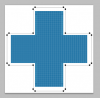
    Making a Border in Photoshop (How to control the Stroke)-screen-shot-2011-11-30-1.58.12-pm.png

    Notice where the gap between the border changes from 1 pixel to 2 pixels? When I try to create a STROKE on that border, I don't understand why Photoshop strokes the OUTSIDE of the some portions of the path and the INSIDE of others.

    Making a Border in Photoshop (How to control the Stroke)-screen-shot-2011-11-30-2.01.19-pm.png

    My initial path surrounded the plus sign with a single pixel of padding --- but after 'failing' at this several times, I had to adjust my path to match the one in the first image where certain parts of the path need to be 2 pixels from the plus sign. Is this some sort of 'winding' issue? I'm surprised I can't specify "center", "outside" or "inside".

    Thanks,
    -Luther

  2. #2
    Member
    Join Date
    Sep 2011
    Posts
    79
    Thanks
    0
    Thanked 4 Times in 4 Posts

    Re: Making a Border in Photoshop (How to control the Stroke)

    Hi Luther,
    Im guessing that you don't want the white gap in between the border and the blue cross?
    If so, you can just create a stroke by right clicking the vertical and horizontal layers, then clicking 'blending options…'
    you will get a popup window with a menu on the right, click stroke on that menu, set it to how many px you want the stroke to stand out by, set the colour
    to the blue of the cross then you should have your stroke.

    If you DO want that white gap between the stroke and the cross, create a second cross that is on the layer behind the horizontal and vertical layers,
    then make it 1px bigger than the blue cross, set its colour to white so it is the same as the background then do the same as the method above with the stroke.
    That should solve your problem, and the stroke will adapt if you change your cross' shape.

    ONE LAST THING:
    Sorry about this, I forgot to mention it earlier, you will need to merge the vertical and horizontal layers, this is done by selecting the two layers then right clicking
    one of the layers then clicking merge, otherwise you will get the stroke of one of the layers on top of the other, creating an odd effect.

    Sorry if this looks like it was written for babies but I had no Idea of your photoshop experience

    Tim

    For full size imagesClick here!
    (sorry steve!)

  3. #3
    Junior Member
    Join Date
    Nov 2011
    Posts
    5
    Thanks
    0
    Thanked 0 Times in 0 Posts

    Re: Making a Border in Photoshop (How to control the Stroke)

    Not at all - I really appreciate the detail.

    Your suggestions make perfect sense - and look like they will scale well too.

    What I'm 'really' looking for is a better understanding about paths - and what I can do to control how a stroke is drawn on the path.

    The second image I posted will actually work just fine for what I'm doing (yes, I do want the 1 pixel of white padding) but I am working on a similar image that is only 20x20 and when I try to stroke the same path on it, the stroke wraps from the inside to the outside MIDLINE! It doesn't even wait for a corner.

    That image is so small that I've decided to simply paint the border pixel by pixel for now - but I wish I understood how to better control strokes and fills on paths - especially when I'm dealing with a shape around 18x18 pixels large.

  4. #4
    Power User
    Join Date
    Sep 2010
    Location
    Southern, Illinois
    Posts
    391
    Thanks
    11
    Thanked 38 Times in 37 Posts

    Re: Making a Border in Photoshop (How to control the Stroke)

    You could always put your stroke on a new layer and then stoke that layer. To put fx on a new layer right click on the fx icon that shows up on he layer and hit create new layer.

  5. #5
    Junior Member
    Join Date
    Nov 2011
    Posts
    5
    Thanks
    0
    Thanked 0 Times in 0 Posts

    Re: Making a Border in Photoshop (How to control the Stroke)

    Is it the case that stroking the layer as you've described is more predictable or accurate than stroking a vector path on a new layer? In my case, I did create a new layer - but I tried to stroke the shape or vector path on that new layer - which is what I can't get to work predictably.

    If so, sweet, I will keep that approach in mind when I need to apply a border ... but that still leaves me with the unanswered question - why does a path's stroke wander around the path like I'm seeing? I'd like to understand how to control a path's stroke to maybe take advantage of Photoshop's path functionality.


Posting Permissions

  • You may not post new threads
  • You may not post replies
  • You may not post attachments
  • You may not edit your posts
Powered by vBulletin® Version 4.1.9
Copyright © 2012 vBulletin Solutions, Inc. All rights reserved.
Content Relevant URLs by vBSEO 3.6.0
Copyright 2011 Photoshop Gurus Forum. All rights reserved.
All times are GMT -5. The time now is 01:39 PM.
vBulletin Skins