Re: How do I put a thin 1px rectangle around an image?
There are multiple ways to do this, but I think the easiest to explain is:
ctl/cmd click on the layer thumbnail of the rectangle
Go to Select>modify>expand
Put in the number of pixels you want -- 10 px -- and enter. Now you'll have a new selection.
Go to edit>stroke and add your 1 pixel line (your foreground color will be in the dialogue box, but you can change it there with the color picker, or change your FG color first)
Re: How do I put a thin 1px rectangle around an image?
Originally Posted by ibclare
There are multiple ways to do this, but I think the easiest to explain is:
ctl/cmd click on the layer thumbnail of the rectangle
Go to Select>modify>expand
Put in the number of pixels you want -- 10 px -- and enter. Now you'll have a new selection.
Go to edit>stroke and add your 1 pixel line (your foreground color will be in the dialogue box, but you can change it there with the color picker, or change your FG color first)
thanks for the amazingly quick reply!
i'm using windows
ctl/cmd click? not sure what to do here
i've tried different things - including ctrl left click and ctrl right click - nothing
i can see 'select' in the menu - but the modify option is always greyed out regardless of what i do!
what am i doing wrong?
ALSO: remember that the space between the pic and rectangle needs to be transparent - from ur description, i wasnt sure if this was the case
Re: How do I put a thin 1px rectangle around an image?
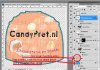
I don't know if this picture will help you, but unless there is something wrong with the program, then you are just making some small error.
And yes, you will have a transparent space, though I used an existing img which doesn't have that. If you need I will go back and make you an exact example of what you want. Let me know.
Your modify option will not be greyed out if you have a selection; if you see the marching ants.
When you Control click it will be the usual left click.
So, in this image I wanted another shape below the peach shape. I could have used a stroke but I wanted a 3rd line and so on. So I did ctl click on the peach icon, expanded as needed, got my marching ant border, and filled it. Now in your case, you will see the selection, the marching ants, and you'll go to edit and choose stroke.
Re: How do I put a thin 1px rectangle around an image?
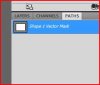
Photoshop. I don't know the technical reasons for some of its stupid jerk issues. Let's see. I would try the following:Use the shape tool. I should have steered you this way to begin with:To the left of the shape tool drop down on the top you will see another dropdown called geometry options and one of those is a fixed size. To the left of that secton you will find another section of 3 choices, one will be chosen. Click the middle one which is paths. Find you square box and draw out your shape. Go to the paths palette, ctl click the path and you'll have a selection to stroke. It will have nice clean lines.
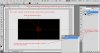
Here's a guide
Last edited by ibclare; 01-09-2012 at 08:54 PM.
Reason: explanatory img added