-
Recreate frosted glass effect from Win7 window borders
Hello!
I'm just wondering if anyone has come across a method for creating a similar frosted glass effect that Windows 7 usses on their window borders.
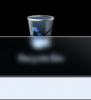
I want to use the frosted glass background as an overlay in a webpage so It can't be done to an image (has to be a separate layer). Also, it needs to distort whatever's below it somehow. Please see the image for an example of what I'm looking for.
Thanks!
-
-
Guru
Re: Recreate frosted glass effect from Win7 window borders
that all that is, is a copy of the lower half of an image with what looks like a Gaussian blur added to it
-
-
Re: Recreate frosted glass effect from Win7 window borders

Originally Posted by
iDad
that all that is, is a copy of the lower half of an image with what looks like a Gaussian blur added to it
Right, is there a way to achieve this in photoshop? Or is this something that's only possible with programming (like C++)?
-
-
Guru
Re: Recreate frosted glass effect from Win7 window borders
Not a windows user here but it's possible in PS no idea what you're asking so I'll let someone else see if they can help u
-
-
Power User
Re: Recreate frosted glass effect from Win7 window borders
I'm not a programmer either unless you consider Actionscript 3 a programming language. However, C++ has nothing to do with graphics.
1. Take this image into Ps and duplicate the first layer. Layer>Duplicate..
2. On the duplicated layer, select the Rectangular Marquee Tool (keyboard shortcut M) and make a selection over the lower half of the layer you're working on.
3. Access the Gaussian Blur tool by going into Filter>Blur>>Gaussian Blur and enter a radius of around 2 pixels.
4. Create a new layer (Layer>New Layer)
5. How you do this part is up to you as you have options. Select the Line Tool, it is hidden underneath the Rectangle Tool. Hold down the left mouse button to access it. At the top of the screen is the control panel, enter a radius of 2 pixels and select Fill Pixels. Draw a line across the middle of your layer.
6. Apply Gaussian Blur just as you did before with the same settings.
Last edited by ChrisHPZ; 01-19-2012 at 04:40 PM.
-
-
Re: Recreate frosted glass effect from Win7 window borders

Originally Posted by
ChrisHPZ
I'm not a programmer either unless you consider Actionscript 3 a programming language. However, C++ has nothing to do with graphics.
1. Take this image into Ps and duplicate the first layer. Layer>Duplicate..
2. On the duplicated layer, select the Rectangular Marquee Tool (keyboard shortcut M) and make a selection over the lower half of the layer you're working on.
3. Access the Gaussian Blur tool by going into Filter>Blur>>Gaussian Blur and enter a radius of around 2 pixels.
4. Create a new layer (Layer>New Layer)
5. How you do this part is up to you as you have options. Select the Line Tool, it is hidden underneath the Rectangle Tool. Hold down the left mouse button to access it. At the top of the screen is the control panel, enter a radius of 2 pixels and select Fill Pixels. Draw a line across the middle of your layer.
6. Apply Gaussian Blur just as you did before with the same settings.
Hi Chris,
Thanks for your reply however what I'm looking for is a transparent, frosted glass image that can be layed on top of anything (after being exported from PS) and give it the frosted glass look.
Think of it this way. Say you have a piece of frosted glass in front of you and a stack of images. Regardless of what image you put under the frosed glass, you get the same results. A blurred, almost distored version of what's underneath (as in the image I provided in the first post where the top half of the recycle bin is normal and the bottom half is beneath the windows 7 transparent window border). So what I want is to be able to create something in PS that is the piece of glass from my illustration above. Then I can take this "glass" and use it in a webpage and whatever is beneath that "glass" will look like it's under frosted glass.
Anyway, I hope that clears it up a little more.
Also, in response to your C++ comment, C++ has a lot to do with graphics! I believe Photoshop was programmed with C++ and has a ton of capabilities to manipulate images. Most video games nowadays are programmed in C++ as well, graphics included.
-
-
Power User
Re: Recreate frosted glass effect from Win7 window borders
"Also, in response to your C++ comment, C++ has a lot to do with graphics! I believe Photoshop was programmed with C++ and has a ton of capabilities to manipulate images. Most video games nowadays are programmed in C++ as well, graphics included."
Is that right? Well, I guess it does make sense that the Ps application would be programmed in C++. I guess I just never made the connection between graphics and programming languages. To expand on the video games statement, I have seen quite a lot of games featuring the "Powered By Adobe Flash" being displayed. Assassin's Creed is one of them. It's interesting how all of these things come together isn't it. Alright, I'll work on a a piece of frosted glass and see what I can come up with. For the second part of using it in a webpage, I think you would do well with using this image for all :hover rules. Your detailed explanation certainly gives me more to work with.
Last edited by ChrisHPZ; 01-20-2012 at 01:53 PM.
-
-
Power User
Re: Recreate frosted glass effect from Win7 window borders
Ok, here's an image that I think you can use for whatever project you're working on. Also, if you want I can email you the psd source file.

Additionally, the explanation of how I did this is below.
1. Open Ps and be sure that the background and foreground colors are black and white. Press the D key on your keyboard if you're not sure.
2. On the first and only layer you have right now, fill it with black. You can do this quickly by holding down the alt key and delete key at the same time.
3. Still on the first layer, click Filter>Render>>Fibers. In the dialog box that opens, set the variance option to 9, and the strength option to 13 and click "Ok"
4. Click on Filter>Filter Gallery.. and go into the Distort menu and select Glass. In the settings box on the right, set these values accordingly:
Distortion = 5
Smoothness = 3
Texture = Frosted
Scaling = 91%
Click the "Ok" button
5. Duplicate this layer, pressing Ctrl and J together is the keyboard shortcut.
6. Set the duplicated layer's blending mode to Multiply.
7. Flip the image by clicking on Image>Image Rotation>>90 CCW
-
Tags for this Thread
Posting Permissions
- You may not post new threads
- You may not post replies
- You may not post attachments
- You may not edit your posts
Forum Rules
Powered by
vBulletin® Version 4.1.9
Copyright © 2012 vBulletin Solutions, Inc. All rights reserved.
Content Relevant URLs by
vBSEO 3.6.0
Copyright 2011 Photoshop Gurus Forum. All rights reserved.