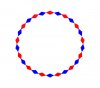
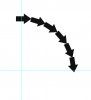
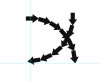
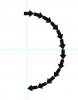
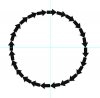
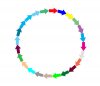
I would like to know if there's a handy way in Photoshop to line up shapes around a circle in a similar manner:
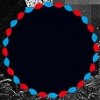
I have pondered this for a while and googled pretty much every phrasing I could think of to no avail. I don't think one could pull something like this off manually (I mean even getting the shapes to come together perfectly after the full circle would be a nightmare).
If you think you have a solution to my problem please leave a reply. All help would be well appreciated!
I find this easy to do. But it will take some explanation. I usually will take the time to make a tutorial, sometimes even a short video, but it seems that when I do the OP never comes back. So this time I will wait to see if you come back.
Here are puppy feet shapes that I aligned in a circle..
I find this easy to do. But it will take some explanation. I usually will take the time to make a tutorial, sometimes even a short video, but it seems that when I do the OP never comes back. So this time I will wait to see if you come back.
Here are puppy feet shapes that I aligned in a circle..
Create a new doc. Fill with white.
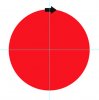
Drag a horiz and vert guidelines to center.
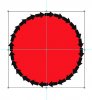
Create a circle. Fill with color. This will only be a template.
Use Custom shape tool to create a shape at top of circle.
Turn off circle layer.
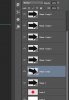
Command + J to duplicate the shape an even number of times. I used six.
From the bottom, select the second duped shape layer.
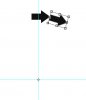
Command/Control + T to transform.
Hold alt/option + mouseclick to move the rotation point to center of guidelines.
Hold Shift + Alt/Option to rotate the shape to its next position.
Do this for all shapes. (Note: If you want colors, this is where you would do it)
Highlight the shape layers and hit Control/Command + G to group them.
You may or will have to reposition the group up using the Move tool.
Hit Control/Command + J to copy the group.
Go to EDIT > TRANSFORM > ROTATE 90%
Then use the Move tool to move the new group into position.
Hold the Shift key to move faster.
Here's where you could merge the two groups and rotate, or repeat the above mentioned process two more times.
You can decide.
Turn on your circle layer and re-center the shapes if needed.
If you have to have the shapes in an exact size, highlight the shape groups, right click and select Merge Visible while holding the Alt/Option key. This will merge a copy of the group layers into one. Turn off the other group layers and you can then use the Transform function to re-size the newly merged group.
If you need help coloring the shapes, let me know. For now, I will assume you know how to do that.
Make a brush in the design you wish. Set the spacing for what you need, set angle jitter to direction in the brush engine. Stroke the path with the brush.
This is a good idea Hawk, it was the first thing I thought of when I started. The problem I found was alternating the colors.
How would you change the colors of the individual arrows? Hopefully I'm missing something.
Excellent Hawk!!! I did miss that! It was the spacing that threw me, so very simple!
Using the shapes saved in individual layers (groups) allows me to easily go back and change colors. This might be the only slight advantage to using shapes.