-
Junior Member
How do I do this?
How do I have this black edged feathered around my photo?
I'm using a Photoshop CS2.
Thanks
-
-
Member
new layer
bucket fill black
elliptical marquee tool*
cut*
blur->Gaussian blur (about 45, but depends on the pic)
*these steps can be replaced with the eraser tool, but you'll get a smoother circle with the marquee
-
-
Junior Member

Originally Posted by
mozartdminor
new layer
bucket fill black
elliptical marquee tool*
cut*
blur->Gaussian blur (about 45, but depends on the pic)
*these steps can be replaced with the eraser tool, but you'll get a smoother circle with the marquee
Hi there,
First up, Thanks for the help .. but I must admit I'm a rookie to this.
I have so far been able to reached the elliptical marquee tool as u stated .. but I'm not sure how to cut.
Can you pls help elaborate a little.
Thanks again.
-
-
Member
Sorry about that, sometimes I get carried away. Hopefully I'll be a bit more helpful this time.
You're using the elliptical marquee tool to select the area that you want to get rid of, basically the part of the image that you don't want totally black.
Once you have your ellipse drawn go to edit->cut and then select->deselect in the drop down menu's at the top of PS.
Now back on your menu go to filter->blur->gaussian blur. and play with the slider until you like the result, your setting is really going to decide on the size of your image. But like I said, I'm guessing something around 30-60 will work.
-
-
Junior Member

Originally Posted by
mozartdminor
Sorry about that, sometimes I get carried away. Hopefully I'll be a bit more helpful this time.
You're using the elliptical marquee tool to select the area that you want to get rid of, basically the part of the image that you don't want totally black.
Once you have your ellipse drawn go to edit->cut and then select->deselect in the drop down menu's at the top of PS.
Now back on your menu go to filter->blur->gaussian blur. and play with the slider until you like the result, your setting is really going to decide on the size of your image. But like I said, I'm guessing something around 30-60 will work.
Hey again,
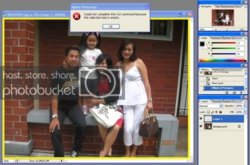
I get this when I edit-> cut

What should I do?
Thanks
-
-
Member
Alright, you're missing a step there. We need to fill the new layer that we made (layer 1 in your case) with solid black. The easiest way to do that would be with the bucket fill tool.
select the bucket fill tool (it looks like a paint bucket that is tipping slightly)
make sure your color is on black (it looks like it is, on your screen shot)
make sure you have your new layer selected (it looks like you're good there too)
click anywhere on you image (yes the whole thing is going to turn black, it's okay)
I'm sorry I've done such a poor job of explaining this, it shouldn't have been this hard. The problem is I'm in photoshop CS3, and on a mac, so things are laid out a bit differently, which makes it... interesting to give directions.
EDIT: oh, after you paint it black, you'll pick back up at the elliptical marquee tool, (then cut, then blur)

-
-
Junior Member
There you go ....

Thanks mozartdminor ... You've been a great help!
-
Posting Permissions
- You may not post new threads
- You may not post replies
- You may not post attachments
- You may not edit your posts
Forum Rules
Powered by
vBulletin® Version 4.1.9
Copyright © 2012 vBulletin Solutions, Inc. All rights reserved.
Content Relevant URLs by
vBSEO 3.6.0
Copyright 2011 Photoshop Gurus Forum. All rights reserved.
All times are GMT -5. The time now is 04:32 PM.