

X_Rogue_X
Active Member
- Messages
- 36
- Likes
- 1
Here's a quick way to brighten a smile that looks natural.
It can be tempting to just grab a paintbrush and start painting with white when you want to fix yellow teeth. Most times, though, it ends up looking terrible. Try this:
Grab the sponge tool, set the mode to Desaturate, and the Flow somewhere in the 20-30% range. Change the brush size for each tooth, making sure it fits inside, and paint the teeth. Don't touch the gums or lips.
Next, grab the dodge tool, set the range to Midtones, and Exposure to 20-30%. Use a soft brush and increase the size to one that will cover all the teeth in one stroke (or close to it).
With a little practice and care, you'll end up with whiter teeth that look natural and most people will be hard pressed to notice the editing.
Here's an example using a photo I got from Stockvault. I wasn't able to find the photographer info, but I'll go back and look again and will edit this post with the proper credit if I can.
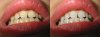
If you look closely, you can still see a few yellow areas, but I intentionally left them because few people have perfectly white teeth anyway.
Edit: image by photographer "prime" of Stockvault.net
It can be tempting to just grab a paintbrush and start painting with white when you want to fix yellow teeth. Most times, though, it ends up looking terrible. Try this:
Grab the sponge tool, set the mode to Desaturate, and the Flow somewhere in the 20-30% range. Change the brush size for each tooth, making sure it fits inside, and paint the teeth. Don't touch the gums or lips.
Next, grab the dodge tool, set the range to Midtones, and Exposure to 20-30%. Use a soft brush and increase the size to one that will cover all the teeth in one stroke (or close to it).
With a little practice and care, you'll end up with whiter teeth that look natural and most people will be hard pressed to notice the editing.
Here's an example using a photo I got from Stockvault. I wasn't able to find the photographer info, but I'll go back and look again and will edit this post with the proper credit if I can.
If you look closely, you can still see a few yellow areas, but I intentionally left them because few people have perfectly white teeth anyway.
Edit: image by photographer "prime" of Stockvault.net
Last edited:


