+ Reply to Thread
Results 1 to 2 of 2
  1. #1
    Junior Member
    Join Date
    Jul 2011
    Posts
    8
    Thanks
    2
    Thanked 0 Times in 0 Posts

    Request: Black & White Stencil Effect

    i can't seem to get the shading right and have decided to cut my losses and ask for some help

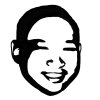
    i need to apply the black & white stencil effect to the following picture (face only)


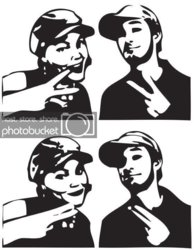
    similar to this:


    thanks in advance!

  2. #2
    Guru
    Join Date
    Jan 2011
    Location
    Elizabeth Port NJ
    Posts
    1,503
    Thanks
    15
    Thanked 149 Times in 143 Posts

    Re: Request: Black & White Stencil Effect

    Hi eddiemcnasty

    I've played around using this technique in PS and this is what i got so far.

    Request: Black & White Stencil Effect-b-w-stencil.jpg

    Basically what i've done is:

    - Extract the subject from the photography, just using quick selection will do the trick, since this selection is gonna be used only as a guide.

    - Desaturate the imagen by going to Image>Adjustments>desaturate.

    - add an adjustments layer "Levels" to increase black and white tones, play whit sliders until you get a well defined white and black areas "edges".

    - Once you got your image composed by black and white mostly, go to Filters>Artistic>Cut out, once again play whit sliders:

    *Set Number of levels to 2 or 3 maximum, that will give you a nice definition whit out loosing basic details on your subject, also will be easy to color correct later on.
    *Set edge simplicity 3 or maximum 4, this will reduce drastically the jagged edges.
    * Set edge fidelity to 1, also remember the the final image will be just a stencil so you will not need too much details

    - Now come the fun part, at this point you will have a nice vector kind defined image, whit 3 or 4 color shades, mostly black,dark grey, light grey and white.

    From now on you will need to replace those gray shades, either way whit black or white, for this part you will be using your brush tool set to 100% opacity and a
    100% flow, also make sure you got your hard edge brush on.

    Just paint some areas that you want to add detail like eyes, nose, mouth and ears, jut let your inner artist come out and set him free.

    this requires a bit of painter and drawing instinct but don't be afraid to experiment whit those tools, is a lot of fun, believe me.

    If not feeling like painting, you can always use external and automated apps like Vector Magic Precision Bitmap To Vector

    Hope this helps.

    Also added PSD file as reference

    Attached Images Attached Images
    Last edited by $1r_M4x1mu$; 08-11-2011 at 07:15 PM.
    Cuando soy Bueno, soy muy BUENO
    Pero cuando soy malo, soy mucho MEJOR


Tags for this Thread

Posting Permissions

  • You may not post new threads
  • You may not post replies
  • You may not post attachments
  • You may not edit your posts
Powered by vBulletin® Version 4.1.9
Copyright © 2012 vBulletin Solutions, Inc. All rights reserved.
Content Relevant URLs by vBSEO 3.6.0
Copyright 2011 Photoshop Gurus Forum. All rights reserved.
All times are GMT -5. The time now is 07:00 AM.
vBulletin Skins