
Photoshop Gurus Forum
Welcome to Photoshop Gurus forum. Register a free account today to become a member! It's completely free. Once signed in, you'll enjoy an ad-free experience and be able to participate on this site by adding your own topics and posts, as well as connect with other members through your own private inbox!
You are using an out of date browser. It may not display this or other websites correctly.
You should upgrade or use an alternative browser.
You should upgrade or use an alternative browser.


ibclare
Queen Bee
- Messages
- 9,890
- Likes
- 4,028
The liquify brush will do a lot of things like the picture. Possibly multiple effects. Maybe with a distort > ripple. Maybe a glassor ocean ripple filter as well. Some warping or layer transformations (though it doesn't look skewed). Maybe even a bit of distort > displacement map effect used for a vertical effect, though that can be tricky to use and other things probly work better.
Also, the photo effect may be a drawing effect that is, is possibly done with filter>sketch> graphic pen, choose horizontal and play with sliders. Follow-up: tried the sketch filter, no go with what I know of using it. It may be that the contrast of the underlying image was first changed and brightness played up to remove the detail.
I'm not a guru, so a more senior member may have spot-on ideas for you. Anyway, I will try to find a similar image and reproduce such an effect. Thing about Photoshop; there's usually more than one way to achieve something and sometimes folk play with multiple layers and multiple effects for the final result. Give it a go and see what you come up with. Cheers, IB
Also, the photo effect may be a drawing effect that is, is possibly done with filter>sketch> graphic pen, choose horizontal and play with sliders. Follow-up: tried the sketch filter, no go with what I know of using it. It may be that the contrast of the underlying image was first changed and brightness played up to remove the detail.
I'm not a guru, so a more senior member may have spot-on ideas for you. Anyway, I will try to find a similar image and reproduce such an effect. Thing about Photoshop; there's usually more than one way to achieve something and sometimes folk play with multiple layers and multiple effects for the final result. Give it a go and see what you come up with. Cheers, IB
Last edited:
ibclare
Queen Bee
- Messages
- 9,890
- Likes
- 4,028
Oh boy, I've been messing with trying to get something to resemble it and I'm not really close. The water pixels look "brushed" over a lower layer. Special brushes?Tried playing with the shear filter . . . There may be more steps and layers involved than meet the eye, certainly no simple one-stop-shop filter.
I wonder if the water is superimposed over another wtr pic with the man in it.
I wonder if the water is superimposed over another wtr pic with the man in it.
Last edited:
I'm wondering if he's used a texture to do a lot of that.
I've actually been looking into that effect for some time. Spent many hours searching for info on it, and have yet to find anything at all.
I really appreciate you having a go at it for me. Thanks so much.
Dan
I've actually been looking into that effect for some time. Spent many hours searching for info on it, and have yet to find anything at all.
I really appreciate you having a go at it for me. Thanks so much.
Dan

$1r_M4x1mu$
Guru
- Messages
- 1,487
- Likes
- 294
Hi dj2216
I've tried something also, and this is what i got so far
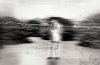
looks a lil similar to the image you posted, basically once you got your image in which you want to work on.
- desaturate image and increase shadows by adding a levels adjustments layers
- go to filter distort ocean ripples apply 100% hit ok
- once again filter distort ocean pipple and apply ripple size 11 and magnitude 4
that will give you a distorted image.
- make a copy of the layer
-Now go to filter-stylize-wind : method wind direction from the right, now we got a windy distortion from the right,
- using the copy that you created before apply the same wind filter but this time make sure that you use the wind from the left.
- set the layer blending mode to overlay whit low opacity in order to see both wind fx on the same image,
*Optional if you see that the distortion fx in not that strong yet you can create a flattened copy of the layer and repeat the waves or ripple distortion as required.
- create a new layer on top and using some grunge and scratch grunge brushes start painting some elements on your scene play whit blending modes to choose the one that best suits the picture
That will be it, also PSD file attached for reference if needed.
God luck.
I've tried something also, and this is what i got so far
looks a lil similar to the image you posted, basically once you got your image in which you want to work on.
- desaturate image and increase shadows by adding a levels adjustments layers
- go to filter distort ocean ripples apply 100% hit ok
- once again filter distort ocean pipple and apply ripple size 11 and magnitude 4
that will give you a distorted image.
- make a copy of the layer
-Now go to filter-stylize-wind : method wind direction from the right, now we got a windy distortion from the right,
- using the copy that you created before apply the same wind filter but this time make sure that you use the wind from the left.
- set the layer blending mode to overlay whit low opacity in order to see both wind fx on the same image,
*Optional if you see that the distortion fx in not that strong yet you can create a flattened copy of the layer and repeat the waves or ripple distortion as required.
- create a new layer on top and using some grunge and scratch grunge brushes start painting some elements on your scene play whit blending modes to choose the one that best suits the picture
That will be it, also PSD file attached for reference if needed.
God luck.
Attachments
ibclare
Queen Bee
- Messages
- 9,890
- Likes
- 4,028
Sir Maximus, I tried the wind too, nice effect. I used shear too but that was a bit dramatic. I like what you came up with. Threw mine out!
Any idea what the wide swaths of blurred pixels are? They have an effect like scraping across sand with the way the pixels pile up to make borders, or maybe they're just blurring existing lines.
Any idea what the wide swaths of blurred pixels are? They have an effect like scraping across sand with the way the pixels pile up to make borders, or maybe they're just blurring existing lines.
$1r_M4x1mu$
Guru
- Messages
- 1,487
- Likes
- 294
Any idea what the wide swaths of blurred pixels are?
i think they are brush strokes like grunge leaves brushes, painted whit some scattering, jitter and size randomization.
ibclare
Queen Bee
- Messages
- 9,890
- Likes
- 4,028
Interesting. Incredible what tools are available.
I was just watching a video about the mixer brush, sampling all layers and working on an upper layer to smear the one below (non-destructive). Never used that and the tutorial is just one part of a 2 and half hour lesson. Sometime I'll get into that, but so many priorities!
I was just watching a video about the mixer brush, sampling all layers and working on an upper layer to smear the one below (non-destructive). Never used that and the tutorial is just one part of a 2 and half hour lesson. Sometime I'll get into that, but so many priorities!

$1r_M4x1mu$
Guru
- Messages
- 1,487
- Likes
- 294
Thanks so much for the help you guys. Looks like I've got a bit of tweaking to do
Hi dj2216
I'm really glad that we could help, just keep working on it you'll eventually get there.
Good luck.
sessi88onlin
Banned
- Messages
- 5
- Likes
- 0
Looks cool. I'll give that a shot.
Very much appreciated
Very much appreciated