
+ Reply to Thread
Results 1 to 10 of 10
  1. #1
    Newbie
    Join Date
    Sep 2010
    Posts
    3
    Thanks
    0
    Thanked 0 Times in 0 Posts

    Need some suggestions for coloring.

    Alright, I'm not a photoshop newbie (been using it for years), but that doesn't make me a master either. There are of course things that I've never had to do in photoshop, hence why I came seeking advice. =p

    I'm wondering what some options are for changing colors of certain colors in an image.
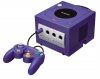
    I want to make some mock-ups of different 'painted' consoles like playstation, gamecube, xbox, etcetc, with different colors in different areas.

    Like I said, I've never had to do anything like this, and quite frankly don't know where to start. haha Any help would be rad.

  2. #2
    Guru
    Join Date
    Jul 2009
    Location
    right in front of you
    Posts
    5,513
    Thanks
    20
    Thanked 123 Times in 120 Posts
    if you have the image already can you just try the >image>Adjustment>Hue/Saturation?filter? not sue I follow what you are doing

  3. #3
    Newbie
    Join Date
    Sep 2010
    Posts
    3
    Thanks
    0
    Thanked 0 Times in 0 Posts
    Need some suggestions for coloring.-game_cube.jpg
    How would I go about, say, changing the light gray to blue, and the purple to black/dark gray, and changing the color of various buttons and what not.

    And still have it look authentic, not muddy colored with overlays and what not.

  4. #4
    Guru
    Join Date
    Jul 2009
    Location
    right in front of you
    Posts
    5,513
    Thanks
    20
    Thanked 123 Times in 120 Posts
    select your areas then go to >image>Adjustment>Hue/Saturation move the levels around I think that will get you there one color at a time

  5. #5
    Guru
    Join Date
    Mar 2010
    Location
    Mesa, Arizona
    Posts
    980
    Thanks
    0
    Thanked 60 Times in 59 Posts
    Solid color adjustment layers and a hue/sat adjustment layer.

  6. #6
    Administrator
    Join Date
    Jul 2010
    Location
    Florida, USA
    Posts
    4,138
    Thanks
    10
    Thanked 144 Times in 136 Posts
    Open your posted image in PS and create a Hue / Saturation adjustment layer.
    In the box that says Master, choose Blue.

    Now play with the Hue Saturation an Lightness sliders and see what happens.
    There's more to it than that but that should get you started.

  7. #7
    Newbie
    Join Date
    Sep 2010
    Posts
    3
    Thanks
    0
    Thanked 0 Times in 0 Posts
    Alright well I got as far as coloring the front plate portion. I wanted to make all 3 of the buttons on the box the same color, they're two different colors originally, obviously, so when I do the hue/sat they don't turn out the same color.
    This is the main problem I'm running into here.
    I tried on a playstation 2 pic also, and turning that yellow the same way looked terrrrrible.

    Turning something that is light in color (the gray parts on the gamecube) to another color is easy and turns out nicely. Trying to change the color of something that isn't white or light gray the same way (hue/sat) looks muddy and over all unrealistic.
    I tried messing around with everything I could think of, including lightening the area before I added color, etcetc.

    I just don't know if the hue/sat route is the way to be approaching this.

  8. #8
    Member
    Join Date
    Aug 2010
    Posts
    84
    Thanks
    0
    Thanked 0 Times in 0 Posts
    Game_Cubeshrunk.psd


    The problem with doing large color moves is that in order to achieve your color it's going to throw something else out of whack. You can't just make overall moves with hues and saturation in most cases. You have to make selections and mask shit off. Here's an example of how I would work this file, though I would take more time if this was a real job for me.. Anyway you don't have to have as good of selections as I did for something you're just doing for yourself but what you are trying to do is complicated and there really is a lot to it. I almost always start off my selections with the color range tool. I did not hand draw any of this. It would have taken forever, as it was I did this somewhere around 45 minutes.
    Last edited by tricky500; 09-02-2010 at 03:12 AM.

  9. #9
    Administrator
    Join Date
    Jul 2010
    Location
    Florida, USA
    Posts
    4,138
    Thanks
    10
    Thanked 144 Times in 136 Posts
    If you're leaving the color option box on Master, all the colors will shift and the results will be unpredictable.
    You need to to select a specific color.
    If you choose Yellow, only the yellow button will change color, choose Red only the red button will change color, choose Blue, the box, controller and connector on the wire will change color.

    When you choose a specific color the sample tools (eye droppers) become available.
    With the sample tools you don't need to be accurate when choosing a color in the pull down menu.

    For example:
    Choose Red
    Choose the first sample tool
    Sample the "yellow" button on the controller
    The color in the selection box changed from Red to Yellow.

  10. #10
    Guru
    Join Date
    Aug 2010
    Location
    The Abyss
    Posts
    952
    Thanks
    0
    Thanked 0 Times in 0 Posts
    There is an easier way of doing this...

    Goto> Image> Adjustments> Replace Color> and then use the dropper tool to select the area you want to change the color of and then change the color...


Posting Permissions

  • You may not post new threads
  • You may not post replies
  • You may not post attachments
  • You may not edit your posts
Powered by vBulletin® Version 4.1.9
Copyright © 2012 vBulletin Solutions, Inc. All rights reserved.
Content Relevant URLs by vBSEO 3.6.0
Copyright 2011 Photoshop Gurus Forum. All rights reserved.
All times are GMT -5. The time now is 12:37 AM.