+ Reply to Thread
Results 1 to 9 of 9
  1. #1
    Junior Member
    Join Date
    Aug 2010
    Location
    Utah
    Posts
    10
    Thanks
    0
    Thanked 0 Times in 0 Posts

    Turn selection marquee into an outline?

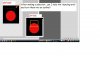
    In Photoshop CS4, when I make a selection, using the Rectangle Marquee tool, or even the Quick Selection tool, is it possible to turn the "dancing ants" into a line...into an outline of the selected area?

    I'll post an example.


    Turn selection marquee into an outline?-dancingantsoutline.jpg

  2. #2
    Member
    Join Date
    Aug 2010
    Posts
    84
    Thanks
    0
    Thanked 0 Times in 0 Posts
    Edit : Reminder to self, read completely before answering.
    Last edited by tricky500; 09-02-2010 at 12:36 PM.

  3. #3
    Administrator
    Join Date
    Jul 2010
    Location
    Florida, USA
    Posts
    4,138
    Thanks
    10
    Thanked 144 Times in 136 Posts
    Use the Custom Shape Tool (U) which is that amoeba shaped icon next to the line tool.
    In the Shape Box: choose a square.
    On That same line choose Fill Pixels, the third icon in on the left.
    Choose the color you want and draw the box the same way you would make a selection with the marquee tool.

    Do this on a separate layer so you can move it around an resize it if necessary.
    This is just drawing a box, it's not making any selection like the marquee tool would.

  4. #4
    Guru
    Join Date
    Mar 2010
    Location
    Mesa, Arizona
    Posts
    980
    Thanks
    0
    Thanked 60 Times in 59 Posts
    Edit-stroke, then choose the color and line thickness.
    Last edited by hawkeye; 09-02-2010 at 01:12 PM.

  5. #5
    Junior Member
    Join Date
    Aug 2010
    Location
    Utah
    Posts
    10
    Thanks
    0
    Thanked 0 Times in 0 Posts
    I want to CHANGE the marque to an outline....particularly for irregular shaped selections, like when all of one color is selected.

    My example uses a rectangle marquee...but the shape of the selected area is incidental. It is the transformation of the "dancing ants" into an OUTLINE that I am wanting.

  6. #6
    Guru
    Join Date
    Mar 2010
    Location
    Mesa, Arizona
    Posts
    980
    Thanks
    0
    Thanked 60 Times in 59 Posts
    Edit-stroke, then choose the color and line thickness.

  7. #7
    Administrator
    Join Date
    Jul 2010
    Location
    Florida, USA
    Posts
    4,138
    Thanks
    10
    Thanked 144 Times in 136 Posts
    Quote Originally Posted by hawkeye View Post
    Edit-stroke, then choose the color and line thickness.
    In that case ^

  8. #8
    Guru
    Join Date
    Jul 2009
    Location
    right in front of you
    Posts
    5,513
    Thanks
    20
    Thanked 123 Times in 120 Posts
    Attachment 439I think he wants. selection transformation right click selection> Transforms selection


    oops mybad, thats not what he asked.DOH
    Last edited by iDad; 09-02-2010 at 01:22 PM.

  9. #9
    Junior Member
    Join Date
    Aug 2010
    Location
    Utah
    Posts
    10
    Thanks
    0
    Thanked 0 Times in 0 Posts
    Quote Originally Posted by Steve View Post
    In that case ^
    Edit-stroke....got it!

    Sorry hawkeye! I missed your post on this.

    Yes...it worked! This was EXACTLY what I wanted!


Posting Permissions

  • You may not post new threads
  • You may not post replies
  • You may not post attachments
  • You may not edit your posts
Powered by vBulletin® Version 4.1.9
Copyright © 2012 vBulletin Solutions, Inc. All rights reserved.
Content Relevant URLs by vBSEO 3.6.0
Copyright 2011 Photoshop Gurus Forum. All rights reserved.
All times are GMT -5. The time now is 01:09 AM.