+ Reply to Thread
Page 1 of 3 123 LastLast
Results 1 to 10 of 27
  1. #1
    Power User
    Join Date
    Feb 2011
    Posts
    249
    Thanks
    1
    Thanked 1 Time in 1 Post

    The best way to cut out an image like next shape..

    Hi folks here i am back again!

    I've again a annoying problem and that is:i made a rounded rectangle with the pen tool with nice round corner(more rounded then the basic rounded rectangle).

    Like this one:

    The best way to cut out an image like next shape..-grijze-ronde-hoeken.png

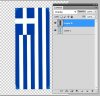
    And i want to cut out this shape out a flag and that is:

    The best way to cut out an image like next shape..-ellhnikhshmaia006-600x423.png

    I hope you guys understand what i mean.In a short way:i want a rounded corners flag like my grey shape.

    What is the best way to do it?

  2. #2
    Administrator
    Join Date
    Jul 2010
    Location
    New Jersey, USA
    Posts
    4,744
    Thanks
    12
    Thanked 160 Times in 150 Posts

    Re: The best way to cut out an image like next shape..

    Is this what you want?


    The best way to cut out an image like next shape..-smoothflag.png

  3. #3
    Guru
    Join Date
    Jul 2009
    Location
    right in front of you
    Posts
    5,906
    Thanks
    23
    Thanked 147 Times in 144 Posts

    Re: The best way to cut out an image like next shape..

    Thats what I read .......looks good Steve!

  4. #4
    Forum Mod
    Join Date
    Mar 2002
    Location
    Here... ?
    Posts
    5,001
    Thanks
    10
    Thanked 191 Times in 189 Posts

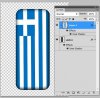
    Re: The best way to cut out an image like next shape..

    This one?...The best way to cut out an image like next shape..-grijze-ronde-hoekenaa.jpg

  5. #5
    Power User
    Join Date
    Feb 2011
    Posts
    249
    Thanks
    1
    Thanked 1 Time in 1 Post

    Re: The best way to cut out an image like next shape..

    Quote Originally Posted by Steve View Post
    Is this what you want?


    Attachment 2882
    Yeah but i think you used blur or something because the corners are a little bit blurred man!


    Quote Originally Posted by dv8_fx View Post
    This one?...Attachment 2883
    Yes man!This is what i really wanted!How exact did you this?And if its possible... can you send me the PSD document so i can look EXACT how you did it?

  6. #6
    Power User
    Join Date
    Feb 2011
    Posts
    249
    Thanks
    1
    Thanked 1 Time in 1 Post

    Re: The best way to cut out an image like next shape..

    Quote Originally Posted by dv8_fx View Post
    This one?...Attachment 2883
    You still didn't say or show HOW you did it man?!:s:s:s

  7. #7
    Forum Mod
    Join Date
    Mar 2002
    Location
    Here... ?
    Posts
    5,001
    Thanks
    10
    Thanked 191 Times in 189 Posts

    Re: The best way to cut out an image like next shape..

    Here ya go....

    The best way to cut out an image like next shape..-grijze-ronde-hoeken-dv.png

  8. #8
    Power User
    Join Date
    Feb 2011
    Posts
    249
    Thanks
    1
    Thanked 1 Time in 1 Post

    Re: The best way to cut out an image like next shape..

    Quote Originally Posted by dv8_fx View Post
    Here ya go....

    Attachment 2946
    Hey man.. are you kidding or what?I ask you for an explanation how you did it and again you post just the finished image!?

  9. #9
    Forum Mod
    Join Date
    Mar 2002
    Location
    Here... ?
    Posts
    5,001
    Thanks
    10
    Thanked 191 Times in 189 Posts

    Re: The best way to cut out an image like next shape..

    I thought you needed a finished image..... A simple layer clipping group.... flag layer atop shape layer... ALT+click solid line in between the layers in layer pallete. Add non destructive inner shadow to shape layer.....

  10. #10
    Guru
    Join Date
    Apr 2011
    Location
    born in U.S.S.R.
    Posts
    1,742
    Thanks
    36
    Thanked 120 Times in 112 Posts

    Re: The best way to cut out an image like next shape..

    1. open both images.
    2. select flag image (becouse its smaller) and copy to shape image.
    3. select layer 0 (shape) and press CTRL+T (edit/free transform) - make shape same size and location as flag.
    4. CTRL+click on shape's layer (it will make shape selection).
    5. delete shape's layer.
    6. SHIFT+CTRL+I (select/inverse)
    7. CTRL+X
    8. double click on only one layer left. brings up layer style window.
    9. Check Inner Shadow and Bevel and Emboss.
    10. play with those's two settings.
    11. maybe flatten image to save jpg or something (layer/flatten image).

    my recommendation - innershadow distance=0, size=4; bevel size=3, soften=6 (up to you)

  11. The Following User Says Thank You to SeniorS For This Useful Post:

    SlapShot (04-09-2011)


Tags for this Thread

Posting Permissions

  • You may not post new threads
  • You may not post replies
  • You may not post attachments
  • You may not edit your posts
Powered by vBulletin® Version 4.1.9
Copyright © 2012 vBulletin Solutions, Inc. All rights reserved.
Content Relevant URLs by vBSEO 3.6.0
Copyright 2011 Photoshop Gurus Forum. All rights reserved.
All times are GMT -5. The time now is 12:47 PM.
vBulletin Skins