+ Reply to Thread
Results 1 to 6 of 6
  1. #1
    Newbie
    Join Date
    Apr 2011
    Posts
    1
    Thanks
    0
    Thanked 0 Times in 0 Posts

    Smile How to create the attached logo

    I am trying to create this logo (attached image) for the last 2 days. I have tried using the pen tool but the resulting shape is distorted. I would like a method where the normal rounded box can be modified into the following shape. Instructions to create the shape will be helpful.

    How to create the attached logo-hjj.jpg

  2. #2
    Forum Mod
    Join Date
    Mar 2002
    Location
    Here... ?
    Posts
    5,001
    Thanks
    10
    Thanked 191 Times in 189 Posts

    Re: How to create the attached logo

    What PS are you on?

    In CS, you'll need the Rounded rectangle tool .....

    How to create the attached logo-2011-04-20_193238.jpg

    Create on a new layer.... then CTRL+T to transform.... hold down CTRL and drag the anchor points to create shape as needed....

    How to create the attached logo-2011-04-20_193638.jpg

    when done, create layer copy of shape and transform flip horizontal.

    To change color of shapes ... CTRL+click layer icon to select shape and fill with desired color....

    position shapes in place and play with layers opacity...

    Then add desired text.....

    This will take 4 layers.... 2 shapes .... 2 text


    Hope this instant fast tute is clear and helps ....lol....

  3. #3
    Senior Member
    Join Date
    Mar 2011
    Location
    Belgium
    Posts
    123
    Thanks
    1
    Thanked 21 Times in 20 Posts

    Re: How to create the attached logo

    just like dv8 said

    you can make a rounded rectangle with the rounded rectangle tool
    Photoshop Tutorials: Rounded Rectangle tool

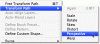
    and then you transform the rectangles with transform perspective
    How to create the attached logo-photoshop-transform-path.gif

    then you have 2 layers one with orange and one with green
    set the blend modus from orange layer on "darken"

    result

    How to create the attached logo-orange-green.jpg
    Last edited by colleague; 04-20-2011 at 07:13 AM.

  4. #4
    Forum Mod
    Join Date
    Mar 2002
    Location
    Here... ?
    Posts
    5,001
    Thanks
    10
    Thanked 191 Times in 189 Posts

    Re: How to create the attached logo

    Colleague.... this is one instance transform perspective really isn't that needed. But your idea will also work....

  5. #5
    Forum Mod
    Join Date
    Mar 2002
    Location
    Here... ?
    Posts
    5,001
    Thanks
    10
    Thanked 191 Times in 189 Posts

    Re: How to create the attached logo

    Quote Originally Posted by justonic View Post
    I am trying to create this logo (attached image) for the last 2 days. I have tried using the pen tool but the resulting shape is distorted. I would like a method where the normal rounded box can be modified into the following shape. Instructions to create the shape will be helpful.

    Attachment 3305

    What I failed to mention was setting for the radius of curve..... my sample was set at 50...
    Last edited by dv8_fx; 04-20-2011 at 08:37 AM.

  6. #6
    Power User
    Join Date
    Mar 2011
    Location
    Kentucky
    Posts
    230
    Thanks
    5
    Thanked 7 Times in 7 Posts

    Re: How to create the attached logo

    I don't know if this will help your view on perspectives, but it might.
    Adobe - tutorial : Use Vanishing Point to edit images in perspective


Tags for this Thread

Posting Permissions

  • You may not post new threads
  • You may not post replies
  • You may not post attachments
  • You may not edit your posts
Powered by vBulletin® Version 4.1.9
Copyright © 2012 vBulletin Solutions, Inc. All rights reserved.
Content Relevant URLs by vBSEO 3.6.0
Copyright 2011 Photoshop Gurus Forum. All rights reserved.
All times are GMT -5. The time now is 12:56 PM.
vBulletin Skins