+ Reply to Thread
Results 1 to 9 of 9
  1. #1
    Junior Member
    Join Date
    Jun 2011
    Posts
    6
    Thanks
    2
    Thanked 0 Times in 0 Posts

    How do I edit picture to look like this?

    The question is: How do I make a picture / edit a picture like this?

    http://st1.harhakuva.org/works/13090...ck_by_espe.jpg

    That is an example of picture that I would like to edit. The background is dark and the character of the picture is dark too, anyway still some light between a character and the background. I need some good instructions, answers like "USE THE PHOTOSHOP" won't help.

    Thank you

  2. #2
    Forum Mod
    Join Date
    Jun 2011
    Location
    Uk
    Posts
    5,620
    Thanks
    85
    Thanked 449 Times in 424 Posts

    Re: How do I edit picture to look like this?

    get your original image duplicate it top laye desaturate and do a levels adjustment to until it is very contrasty and blacked out person then apply a layer mask and use a soft brush to paint back in the colour from underneath layer and a fine hard brush around he character in the image

  3. #3
    Guru
    Join Date
    Jan 2011
    Location
    Elizabeth Port NJ
    Posts
    1,503
    Thanks
    15
    Thanked 149 Times in 143 Posts

    Re: How do I edit picture to look like this?

    Hi Jeze

    i tried to replicate the effect used, so i got this
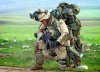
    How do I edit picture to look like this?-lone_soldier_00.jpgHow do I edit picture to look like this?-lone_soldier_00_modded.jpg

    - extract o cut out the main subject in this case the soldier in order to do that you can use any extracting techique i will recommend using the pen tool 'cause you'll need a relatively sharp edges around the soldier. "position this layer on top"

    - go back to the original picture create a copy of it, and go to image adjustments DESATURATE,so you will end it up whit a grey image, now make a copy of this layer and set the blending mode to multiply, that will make your image twice darker than before.

    - Now make 3 or 4 more copies of this dark overlayed layer, and at the end you will get a pretty dark image. "merge all the dark layers"

    - You got 2 layers by now
    1 The soldier on top
    2 the very dark image on the bottom

    - Go to the layer on top and hover the mouse over the extracted soldier and LEFT+CRTL click over it, that will give you a selection of the soldier right.

    - Now create a new layer on top and fill the selection on the created layer whit black, "hide or delete original the extracted soldier"

    -Create a new layer in between the black soldier silhouette and the very dark background and set its blending mode to overlay

    - choose a Orangy color from the palette let's say "ff9900" it can be any color.
    select a big soft brush whit a 10% opacity and start painting the light glows around the black silhouette, DONE

    * if you wanna go even further, create another layer on top of the colorized layer and once again set the blending mode to overlay choose white as color, whit a smaller brush start painting around the silhouette once again this will make your colors POP better and will increase the lightness around your subject

    Once you are happy whit you work create a flattened version of all the layers on top by Hitting ALT+CRTL+SHIFT+E.

    add some noise 0.2 % monochromatic amount and that will be it.

    Hope this helps.

    Cuando soy Bueno, soy muy BUENO
    Pero cuando soy malo, soy mucho MEJOR

  4. The Following User Says Thank You to $1r_M4x1mu$ For This Useful Post:

    Jeze (06-28-2011)

  5. #4
    Junior Member
    Join Date
    Jun 2011
    Posts
    16
    Thanks
    0
    Thanked 1 Time in 1 Post

    Re: How do I edit picture to look like this?


    Select Pen Tool --> Create Path of body --> Copy the image by Ctrl +j --> Make Background --> DESATURATE using Ctrl +U -->

    create new layer ---> set gradient black + orange --> change the layer blending mode for desire look. Now the black color in the body image.
    Please read the Signature rules.Thank you.

  6. The Following User Says Thank You to photoshopsociety For This Useful Post:

    Jeze (06-28-2011)

  7. #5
    Senior Member
    Join Date
    Jun 2011
    Location
    Raxacoricofallapatorius
    Posts
    147
    Thanks
    6
    Thanked 13 Times in 13 Posts

    Re: How do I edit picture to look like this?

    well done photoshop society.

  8. #6
    Junior Member
    Join Date
    Jun 2011
    Posts
    6
    Thanks
    2
    Thanked 0 Times in 0 Posts

    Re: How do I edit picture to look like this?

    Thank you very much.

  9. #7
    Junior Member
    Join Date
    Jul 2011
    Location
    Philippines
    Posts
    12
    Thanks
    5
    Thanked 0 Times in 0 Posts

    Re: How do I edit picture to look like this?

    Wow those are awesome, guys here are so helpful.

  10. #8
    Senior Member
    Join Date
    Jan 2011
    Location
    Red Deer, Alberta, Canada
    Posts
    175
    Thanks
    4
    Thanked 8 Times in 8 Posts

    Re: How do I edit picture to look like this?

    Just use selections and curves.... pretty simple really!

  11. #9
    Forum Mod
    Join Date
    Jun 2011
    Location
    Imperial Beach, CA, US
    Posts
    3,573
    Thanks
    97
    Thanked 218 Times in 217 Posts

    Re: How do I edit picture to look like this?

    So many ways to get a desired effect in Photoshop. Awesome examples.


Tags for this Thread

Posting Permissions

  • You may not post new threads
  • You may not post replies
  • You may not post attachments
  • You may not edit your posts
Powered by vBulletin® Version 4.1.9
Copyright © 2012 vBulletin Solutions, Inc. All rights reserved.
Content Relevant URLs by vBSEO 3.6.0
Copyright 2011 Photoshop Gurus Forum. All rights reserved.
All times are GMT -5. The time now is 01:08 PM.
vBulletin Skins