1Likes
-
combining old photo and new
I'm a newbie to the forum, and have been playing around with Photoshop for some years now. I'm sure this question has been asked before but I wouldn't even begin to know how to search for it...
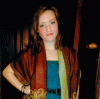
I'm doing a favor for a friend and creating an image of herself and her daughter side-by-side at the same age. My friend's photo is probably 40 years old and needed the usual color corrections. Otherwise not bad. The daughter's photo had some deterioration which I fixed with the healing brush. The color is OK, but the photo was taken with a flash and is therefore rather overexposed. The older picture of her mother was taken outdoors in natural light. My question is how can I reconcile the two? I've experimented with adding cooling colors to the one and warming colors to the other, but I can't seem to get the over-exposed image more compliant with the soft, naturally-lit image. Can someone direct me to a link or tutorial which will point me in the right direction?
-
-
Administrator
Re: combining old photo and new
The solutions depend on the images.
Try opening the overexposed image in ACR (Adobe Camera Raw) you may have more control
You can enable that in Bridge Edit|Camera Raw Preferences.
Post the images here.
Without seeing them it's tough to say what may help.
-
-
Re: combining old photo and new

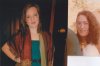
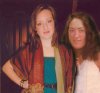
This is the photo as she gave it to me. She scanned the two images, overlapping them.

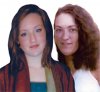
This is what I have so far. (They are on different layers.) The daughter is getting washed-out compared to the original photo, and she still has that "flash" look. I did a little dodging on the face on the right to try to bring up some highlights, and then I wanted to tone down the highlights on the face on the left - but when I try it the rest of the color suffers. I haven't tried to isolate the face from the rest of the image and go about it that way... maybe that's where I went wrong?
-
-
Administrator
Re: combining old photo and new
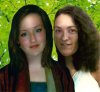
The main problem seems to be her neck and chest.
Make a selection of that area and create a new curves adjustment layer (the little white and black circle on the bottom of the layers pallet)
You just created a mask.
Now click dead center and slowly drag the line down, stop when you like the results.
Parts of the face are still overexposed.
Make the mask active by selecting it.
Select the default colors by pressing (D)
Select the brush tool (B) and select a soft brush.
Set the opacity of the brush very low, 20-25%
With a white brush on the mask layer paint the areas of the face you want to darken.
The mask hid everything but the neck from the curves adjustment.
By painting this white you remove part of the mask.
By painting with black you add to the mask.
You can still adjust curves to brighten or darken the unmasked areas.
-
-
Re: combining old photo and new
Thank you! I will try this and let you know how it goes.
-
-
Re: combining old photo and new
I'm following your instructions but after I create the mask layer and adjust the curves it won't let me apply a brush to it. The circle with the diagonal line through it appears. What step am I missing?
-
-
Administrator
Re: combining old photo and new

Originally Posted by
Juwill
I'm following your instructions but after I create the mask layer and adjust the curves it won't let me apply a brush to it. The circle with the diagonal line through it appears. What step am I missing?
"Make the mask active by selecting it."
You didn't select the mask in the adjustment layer.
-
-
Re: combining old photo and new
Ah, I selected the layer but I didn't realize I had to select the mask itself. These little bitty details can be such stumbling blocks!
-
-
Silly Trucker
Re: combining old photo and new
And there in is the lesson for todays community here at PSG.
Ergo - we all learn and we all make over sights, even the basics catch us all out from time to time.
-
-
Administrator
Re: combining old photo and new

Originally Posted by
Juwill
These little bitty details can be such stumbling blocks!
I know, I've painted directly on the image plenty of times.
This is 1 way to do it and it has an enormous advantage over dodging and burning.
You can add or subtract from the adjusted area, change the amount of adjustment, and it's non destructive.
-
Tags for this Thread
Posting Permissions
- You may not post new threads
- You may not post replies
- You may not post attachments
- You may not edit your posts
Forum Rules
Powered by
vBulletin® Version 4.1.9
Copyright © 2012 vBulletin Solutions, Inc. All rights reserved.
Content Relevant URLs by
vBSEO 3.6.0
Copyright 2011 Photoshop Gurus Forum. All rights reserved.