+ Reply to Thread
Page 1 of 2 12 LastLast
Results 1 to 10 of 13
Like Tree3Likes

Thread: add bluish sky onto the picture

  1. #1
    Junior Member
    Join Date
    Jan 2012
    Posts
    6
    Thanks
    2
    Thanked 1 Time in 1 Post

    add bluish sky onto the picture

    hi,

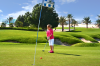
    if you see the attached image, it has a very dull sky line. I want to make the image with good bluish sky and also since there are many tress in the picture, the bluish sky has also to be seen in between the leaves. I dont have a clue how to make the whitish areas around the leaves look bluish like the sky.. can anyone please help on this?

    thanks,

    sunjiiv
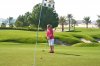
    Attached Thumbnails Attached Thumbnails add bluish sky onto the picture-img_7512.jpg  


  2. #2
    Forum Mod
    Join Date
    Mar 2002
    Location
    Here... ?
    Posts
    5,001
    Thanks
    10
    Thanked 191 Times in 189 Posts

    Re: add bluish sky onto the picture

    Hi sunjiiv.

    How well do you know Photoshop CS? What version do you use?

    There's a few good ways to do this.

    May I point you to one of them....

    How to Replace a Sky in Photoshop

    Hope this helps you.

  3. The Following User Says Thank You to dv8_fx For This Useful Post:

    sunjiiv (01-09-2012)

  4. #3
    Forum Mod
    Join Date
    Jun 2011
    Location
    Uk
    Posts
    5,620
    Thanks
    85
    Thanked 449 Times in 424 Posts

    Re: add bluish sky onto the picture

    I am going to assume your fairly new to photoshop in my version (sorry if I am wrong)

    open your image in photoshop
    go to Google image search and search for a high resolution (large) picture of blue sky
    save that image and load it into photoshop by dragging it on top of your image
    you should get free transform controls come up so position it so it is mainly overlaying where your sky is in your image
    set the layer blending mode to darken (or whatever looks best in your image
    then slightly lower the opacity of the sky layer.
    add a hue saturation adjustment layer above the sky image.
    right click the adjustment layer and select create clipping mask
    play with the sliders until you get the colour of the sky correct with your image ( you may not need to do any of this if it works without the adjustment layer.

    on your sky layer create a layer mask and with a soft black brush paint out the areas of the sky you do not need usually around the tree lines etc and if the sky is causing tonal obstruction to your image ie the trees may look a bit funny lower the opacity of your brush to about 40% and paint where the trees are.


    You may then want to do some colour adjustments on your original image to make sure everything blends together.
    after a couple of miniutes you will have something like this.

    add bluish sky onto the picture-img_7512.png

  5. The Following User Says Thank You to Hoogle For This Useful Post:

    sunjiiv (01-09-2012)

  6. #4
    Banned
    Join Date
    Jan 2012
    Posts
    5
    Thanks
    0
    Thanked 0 Times in 0 Posts

    Re: add bluish sky onto the picture

    One of the most disappointing things that can happen to you as a photographer is to have a once in lifetime chance to take a photograph of something and to have the weather let you down. So, instead of luscious blue skies you’ll get grey or dull skies in your image.
    You can replace the sky in an image in a number of ways. One method I like to use involves the Blend If tool because it avoids the need to make a detailed selection around the area of sky to replace. This is particularly handy if the skyline has trees or other wispy elements along it. The principle of this tool is you blend two layers together conditional on the overall lightness or darkness of the top or bottom layer or you can do it conditional on the lightness or darkness of a color on the top or bottom layer.
    For this purpose I keep a file of skies. Anytime I’m photographing, I’ll swing the camera upwards and shoot a few new sky images for my collection. Then, when I need a sky, I have plenty to choose from.

    Step1:Open both the image which needs a new sky and an image of some sky.

    Step 2:
    Drag the background layer from the sky image into the main image. It will appear at the top of the layer stack.


    Step 3:

    Move and size the sky layer so it overlaps the problem area.
    If the sky is too dark or light for the image, use a tool like the Curves tool to lighten it so it blends in better with the target image.


    Step 4:

    Click the sky layer so it is selected in the layers palette and click the Add a Layer Style icon at the foot of the Layers palette. Click Blending Options to open the Layer Style dialog.
    Locate the Blend If area at the foot of the dialog. You will use Blend If to blend this layer with the layer below. To do this, drag the slider at the far left of the Underlying Layer panel in to the right – almost all the way to the right edge of the slider.
    As you do this, you reveal the underlying layer in all areas except the lightest – the areas which contain the blown out sky.
    Step 5:To smooth the transition between the sky and the remainder of the image, hold the Alt key and drag away one half of the small slider to split it in two. Drag the two pieces apart. The area to the left of the markers delineates where the effect is applied 100% and between the two pieces is where the effect transitions from 100% through to 0%. Click Ok when you’re done.

    Step 6:To fix any problems where the sky has blended into the original image in an inappropriate place, either move the sky further up the image so it doesn’t overlap that area of the image or, if this can’t be done, use a layer mask. With the sky layer selected, click the Add a Layer Mask icon at the foot of the Layer palette. Paint on the mask in black to reveal the original image underneath.


    Step 7:

    Now is the time to look at the image and determine what it needs to finish it. You might need to tweak the sky color and lightness using a Curves adjustment on the sky layer now that the sky is actually in place in the image.
    In some cases you may see a halo effect around the tree branches and leaves or along the edges of buildings where the two images are blended. You can remove these using the Burn tool by painting over these areas with a low Exposure brush and with the Range set to Midtones or Shadows as necessary.


  7. #5
    Forum Mod
    Join Date
    Mar 2002
    Location
    Here... ?
    Posts
    5,001
    Thanks
    10
    Thanked 191 Times in 189 Posts

    Re: add bluish sky onto the picture

    uhhhh .... munawarmunir.

    That's the tute in the link I posted...

  8. #6
    Silly Trucker
    Join Date
    May 2011
    Location
    Trucking the big roads, dust and all.
    Posts
    4,564
    Thanks
    44
    Thanked 228 Times in 223 Posts

    Re: add bluish sky onto the picture

    Tinned meat a foot me thinks, sorry knows.

  9. #7
    Forum Mod
    Join Date
    Mar 2002
    Location
    Here... ?
    Posts
    5,001
    Thanks
    10
    Thanked 191 Times in 189 Posts

    Re: add bluish sky onto the picture

    Banned is he, Master Jedi....

  10. #8
    Forum Mod
    Join Date
    Jun 2011
    Location
    Uk
    Posts
    5,620
    Thanks
    85
    Thanked 449 Times in 424 Posts

    Re: add bluish sky onto the picture

    For now lol

  11. #9
    Senior Member
    Join Date
    Dec 2011
    Location
    Near the Water
    Posts
    166
    Thanks
    1
    Thanked 5 Times in 5 Posts

    Re: add bluish sky onto the picture

    Quote Originally Posted by dv8_fx View Post
    uhhhh .... munawarmunir.

    That's the tute in the link I posted...


    I did the Tute above and could not for the life of me get the tree line to look descent.

  12. #10
    Forum Mod
    Join Date
    Mar 2002
    Location
    Here... ?
    Posts
    5,001
    Thanks
    10
    Thanked 191 Times in 189 Posts

    Re: add bluish sky onto the picture

    Quote Originally Posted by MotoChief View Post
    I did the Tute above and could not for the life of me get the tree line to look descent.
    I have always said throughout the forum, there's so many ways to do a certain task in Photoshop..... it all depends on the job at hand or the image you are working on.

    The tutorial link I posted above works well with the image chosen by the writer to use as an example. And Hoogle's tute is based on the image supplied by the OP. But both tutes serve as a basic guideline to work with. You may need to do further re-touch to further streamline your image scene .


Posting Permissions

  • You may not post new threads
  • You may not post replies
  • You may not post attachments
  • You may not edit your posts
Powered by vBulletin® Version 4.1.9
Copyright © 2012 vBulletin Solutions, Inc. All rights reserved.
Content Relevant URLs by vBSEO 3.6.0
Copyright 2011 Photoshop Gurus Forum. All rights reserved.
All times are GMT -5. The time now is 02:04 PM.
vBulletin Skins