-
Junior Member
Cant see image unless I enlarge the photo
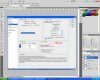
I am pretty new to photoshop - I am currently working out of CS5 and every time I open an image I get that checkboard background over the image unless I view actual pixels or zoom into the photo - I can see the thumbnail of the image in the layers panel but the image itself will not show without zooming in - does anyone know how to fix this??Cant see image.doc
-
-
Guru
What's in the Microsoft Word doc you attached?
Does the image in question have transparent areas? What is the layer opacity set to?
-
-
Guru
Also, how big is the image you are loading? Like, dimension wise not file size..
-
-
Junior Member
The attachment is a screenshot of what I am seeing when I open the image - the opacity is set to 100% and it happens as soon as I open the image - as the background image - even when I change the image to a layer rather than the background layer it still does the same thing - you can see it in the attached doc...
-
-
Junior Member
-
-
Guru
Is this happening with one image only, or any image you try and open in Photoshop?
Here's the image from the word doc:
-
-
Member
What is the source of the image"s" Eg web, digital camera?
What are the file type"s" Eg .jpg .gif .png?
Or dose it happen with any image at all you try and open?
This sounds like a graphic card driver issue try up dating them,
Try seting the "Cache Levels" setting up a few notches if at 4 to about 6-10 under Edit/Preferences/performance/Histery&Cache if this dose not help reset to default 4
Try also turning on/off "Enable OpenGL Drawing" settings under Edit/Preferences/performance/GPU settings
set the Mode in "advanced" to Basic or Normal.
"You need to restart photoshop for GPU settings to take affect (At least open a new document after changing them it will not effect your current open document's)"
Also make sure you are running the latest update for cs5
Hope this helps let us know if it dose or dose not
Last edited by Ultiman; 09-20-2010 at 12:10 AM.
-
-
Guru
Yea I was thinking the same thing. If it happens with every file and not just one, update your video card drivers.
If it's only one file then you are welcome to post it here and we can take a look.
-
-
Junior Member
yes this is happening with any image i open
How do I update my video card drivers?
I will try the other things ultiman posted later this evening and let you guys know if it works! Thanks alot for your help.
-
-
Member
first you need to find out what graphics card you have.
you can find this out inside of photoshop if opengl drawing is on
under" Edit/Preferences/performance/GPU " settings you will see a manufacturer and model name go to that company's website they will have a drivers section u can download from
if you have troubles finding it just let us know what the craphics card is and we will direct you to the appropriate website.
the graphics card information u need to get is located in this picture

You can also find it inside of windows
- Go to your Desktop;
- Right click on your background and click Properties;
- Click on Settings and look under "Display" - it should state your graphic card model.
following is a pic of the second method

Im running XP so it may look diferent to you
Last edited by Ultiman; 09-20-2010 at 08:15 AM.
-
Posting Permissions
- You may not post new threads
- You may not post replies
- You may not post attachments
- You may not edit your posts
Forum Rules
Powered by
vBulletin® Version 4.1.9
Copyright © 2012 vBulletin Solutions, Inc. All rights reserved.
Content Relevant URLs by
vBSEO 3.6.0
Copyright 2011 Photoshop Gurus Forum. All rights reserved.