
What's new
Photoshop Gurus Forum

Welcome to Photoshop Gurus forum. Register a free account today to become a member! It's completely free. Once signed in, you'll enjoy an ad-free experience and be able to participate on this site by adding your own topics and posts, as well as connect with other members through your own private inbox!

Can't see icons due to small size


Gozoman

Member
Messages
16
Likes
3
There is probably a simple solution to this but I can't find it. Bear with me as I'm71!

I've been using Photoshop CS5 Extended for many years most recently on an HP Spectre 360. I've now upgraded to an ASUS Zenbook.

I understood that my license was valid for two computers so I think I went about everything correctly in that I disabled it in my old laptop and then installed it in my new one using my original number.

That all went well but now everything on my screen is so small I can't see it!

I realize that the resolution is higher on my new laptop but is there anything I can do to increase the size of things so I can see them.

I know you will be saying that CS5 Extended is pretty old now but it does everything I want, and at my age there is little point in upgrading even if I could afford it.

I hope there is some way of doing this even if it means editing my registry which I'm happy enough to do.

Many thanks in advance for any help.
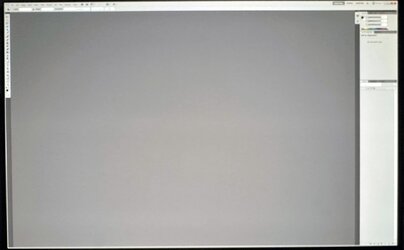
Photoshop desktop.jpg
 
HI @Gozoman
I have a Mac instead of Windows so I got these instructions online and I do not have a way to verify the instructions.
Thought it was srill worth sharing:
This happens because your new ASUS Zenbook has a high-resolution display, and Photoshop CS5 was released before Windows supported modern display scaling.

Follow these steps to make everything larger and easier to see:

1. Close Photoshop if it’s open.

2. Find the Photoshop CS5 executable:
- Right-click your Photoshop shortcut.
- Choose "Open file location."
- You should see Photoshop.exe highlighted (inside something like C:\Program Files\Adobe\Adobe Photoshop CS5).

3. Right-click Photoshop.exe → Properties → Compatibility tab.

4. Click the "Change high DPI settings" button.

5. In the new dialog:
- Under "Program DPI," leave unchecked.
- Under "High DPI scaling override," check the box.
- From the dropdown, select "System (Enhanced)."

6. Click OK, then Apply, then reopen Photoshop.

What this does:
Windows will now enlarge menus, text, and icons in Photoshop so they’re readable. "System (Enhanced)" gives the best results on most high-DPI screens.

Additional Tips:
- If "System (Enhanced)" looks blurry, try plain "System" instead.
- You can also increase global scaling:
- Go to Settings → System → Display → Scale & layout.
- Try 150% or 175%.
- Registry editing is not required for this fix.
 
HI @Gozoman
I have a Mac instead of Windows so I got these instructions online and I do not have a way to verify the instructions.
Thought it was srill worth sharing:
This happens because your new ASUS Zenbook has a high-resolution display, and Photoshop CS5 was released before Windows supported modern display scaling.

Follow these steps to make everything larger and easier to see:

1. Close Photoshop if it’s open.

2. Find the Photoshop CS5 executable:
- Right-click your Photoshop shortcut.
- Choose "Open file location."
- You should see Photoshop.exe highlighted (inside something like C:\Program Files\Adobe\Adobe Photoshop CS5).

3. Right-click Photoshop.exe → Properties → Compatibility tab.

4. Click the "Change high DPI settings" button.

5. In the new dialog:
- Under "Program DPI," leave unchecked.
- Under "High DPI scaling override," check the box.
- From the dropdown, select "System (Enhanced)."

6. Click OK, then Apply, then reopen Photoshop.

What this does:
Windows will now enlarge menus, text, and icons in Photoshop so they’re readable. "System (Enhanced)" gives the best results on most high-DPI screens.

Additional Tips:
- If "System (Enhanced)" looks blurry, try plain "System" instead.
- You can also increase global scaling:
- Go to Settings → System → Display → Scale & layout.
- Try 150% or 175%.
- Registry editing is not required for this fix.
Thanks for the reply, I will try this.
 
Thanks for the reply, I will try this.
HI @Gozoman
I have a Mac instead of Windows so I got these instructions online and I do not have a way to verify the instructions.
Thought it was srill worth sharing:
This happens because your new ASUS Zenbook has a high-resolution display, and Photoshop CS5 was released before Windows supported modern display scaling.

Follow these steps to make everything larger and easier to see:

1. Close Photoshop if it’s open.

2. Find the Photoshop CS5 executable:
- Right-click your Photoshop shortcut.
- Choose "Open file location."
- You should see Photoshop.exe highlighted (inside something like C:\Program Files\Adobe\Adobe Photoshop CS5).

3. Right-click Photoshop.exe → Properties → Compatibility tab.

4. Click the "Change high DPI settings" button.

5. In the new dialog:
- Under "Program DPI," leave unchecked.
- Under "High DPI scaling override," check the box.
- From the dropdown, select "System (Enhanced)."

6. Click OK, then Apply, then reopen Photoshop.

What this does:
Windows will now enlarge menus, text, and icons in Photoshop so they’re readable. "System (Enhanced)" gives the best results on most high-DPI screens.

Additional Tips:
- If "System (Enhanced)" looks blurry, try plain "System" instead.
- You can also increase global scaling:
- Go to Settings → System → Display → Scale & layout.
- Try 150% or 175%.
- Registry editing is not required for this fix.
Okay I tried that. Didn't exactly get there as you described so probably the process is different on a Mac, but I did get there and changed the settings but there was no change whatsoever within CS5. Again with the settings - system -Display - Scale & Layout no changes there made any difference either.
 
Thanks for the reply, I will try this.
Sorry that did not work.
On my Mac, when viewing with high resolution monitors, I reduced the display resolution a bit when the UI was way to small.
I don't know enough about Windows OSes and systems to give specific advice. Maybe other forum members may have ideas.
John Wheeler
 

Back
Top