What's new
Photoshop Gurus Forum

Welcome to Photoshop Gurus forum. Register a free account today to become a member! It's completely free. Once signed in, you'll enjoy an ad-free experience and be able to participate on this site by adding your own topics and posts, as well as connect with other members through your own private inbox!

Dashed line


groston

New Member
Messages
2
Likes
0
I feel like an idiot, but hopefully someone can unconfuse me. I want to draw a dashed line, and the various posts I have seen have indicated that this is easy: Simply choose the stroke options from the top menu. I am using Photoshop CS5, but I do not see this option! LineTool.jpg
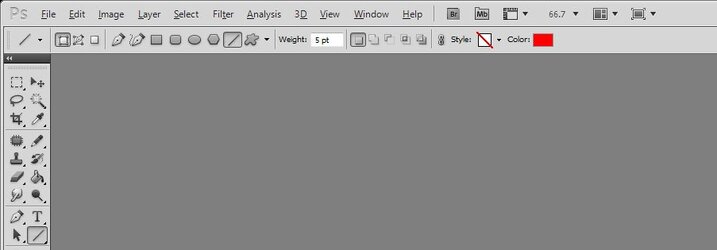
Please tell me how to fix my setup so that I see this option.
 
The "stroke options" setting that you are looking for does not exist in CS5 (which I have, too). There are a few work-arounds to get both straight and curved dashed lines. I'll come back later tonight to give you the steps for these, but right now I need to step away for a while.
 
Ok... here's a method using the Pen tool and the Brush Panel.
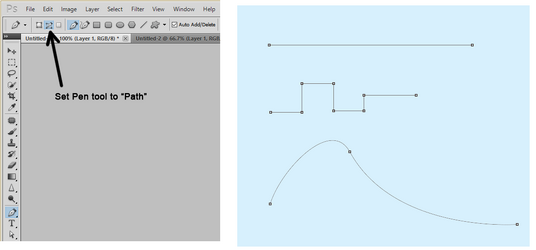
  • With the Pen tool, create a path (not a shape) for your desired dashed line. Go into the paths palette and save the path by naming it.
  • The Pen path can be straight, curved or any combination. I've shown three different paths here.

1762826157408.png


  • Select a round brush with 100% hardness and the thickness of your choice.
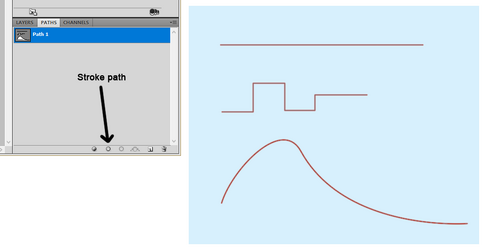
  • With the brush tool active, go into the Paths palette and stroke the path by clicking on the "stroke" icon.
  • This will stroke your path with a solid line, using the brush tool for the stroke.

1762826849238.png


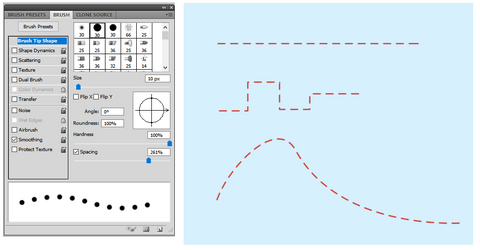
  • Next, we are going to stroke the path again, but this time using the Eraser tool instead of the brush tool.
  • Activate the Eraser tool and select the same hard round brush that you used above. Set the pixel size of this brush to be several pixels thicker than what you used above.
  • Open the Brush panel and select Brush Tip Shape. At the bottom, move the spacing slider to about 260%. You can experiment with this setting.
  • Stroke the path again the same way you did above, but using the eraser tool.
  • Dashed lines !!!

1762827336935.png
 
Last edited:

Back
Top