Hello
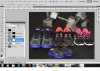
I'm back and stumped once again, (shocker) any help is appreciated. I'm manipulating the colors on the soles of these shoes and was able to change the colors on the mens and baby shoes, now I'm working on the girls and women shoes. When I got through the process, like I did with the mens shoes I'm not able to change the white (on girls shoes) into any other color. I have a layer mask on the hue/sat filter I have gone between the black and white to reveal and hide. When I start adjusting the colors the whole image starts to change not my selected area. I have also just selected the mask to effect the selected area and no luck. :banghead:
What gives?
I'm back and stumped once again, (shocker) any help is appreciated. I'm manipulating the colors on the soles of these shoes and was able to change the colors on the mens and baby shoes, now I'm working on the girls and women shoes. When I got through the process, like I did with the mens shoes I'm not able to change the white (on girls shoes) into any other color. I have a layer mask on the hue/sat filter I have gone between the black and white to reveal and hide. When I start adjusting the colors the whole image starts to change not my selected area. I have also just selected the mask to effect the selected area and no luck. :banghead:
What gives?