
OK so I want to do a really simple thing and Photoshop isn’t letting me do it. I am using Photoshop 6.
All I want to do is overlay the three colors of the Mexican flag (green, red and white) over the text “Vampiros.”
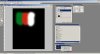
I did this by first making a text layer for “Vampiros.” Then I started another layer for the color overlay. I painted over the text first with green, then with red, and then finally with white (seen in photo 1 below).
I then clicked on “color” in the drop-down menu while still having the paintbrush layer selected.
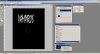
This resulted in a faint amount of all three colors (seen in photo 2 below).
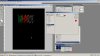
To bring out the three colors I clicked on the text layer and clicked “color overlay” and only the green and red are showing, and the white isn’t white, but gray (seen in photo 3). I want the color to be white, not gray.
This is driving me nuts. I can’t find any website that can address this issue.
Can anyone help?
Thanks in advance for any help you can provide!
All I want to do is overlay the three colors of the Mexican flag (green, red and white) over the text “Vampiros.”
I did this by first making a text layer for “Vampiros.” Then I started another layer for the color overlay. I painted over the text first with green, then with red, and then finally with white (seen in photo 1 below).
I then clicked on “color” in the drop-down menu while still having the paintbrush layer selected.
This resulted in a faint amount of all three colors (seen in photo 2 below).
To bring out the three colors I clicked on the text layer and clicked “color overlay” and only the green and red are showing, and the white isn’t white, but gray (seen in photo 3). I want the color to be white, not gray.
This is driving me nuts. I can’t find any website that can address this issue.
Can anyone help?
Thanks in advance for any help you can provide!

