What's new
Photoshop Gurus Forum

Welcome to Photoshop Gurus forum. Register a free account today to become a member! It's completely free. Once signed in, you'll enjoy an ad-free experience and be able to participate on this site by adding your own topics and posts, as well as connect with other members through your own private inbox!

Export to JPG: arrows are not shown


MGritter

Member
Messages
5
Likes
0
Hi there,

I use Adobe Photoshop CC 2018.

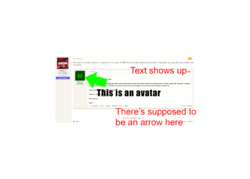
I opened a screen shot, inserted some text, and pointed some arrows from certain parts of the screen shot to the text words that I inserted. However, upon exporting my work to a JPG-file, the arrows do not show up. Strangely, the text words that I inserted do show up.

Does anybody know what I did wrong?

Thanks in advance for the help.

Kind regards,

Martin
 
What was the original format of the screenshot? On a mac, it's PNG. When I do this with screenshots (which I have done for years!) I hit save as, then save it as a PNG.

Screen Shot 2018-03-19 at 10.32.03 AM copy.png
 
Thank you for the very quick reply!

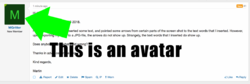
I opened the screenshot directly in Photoshop. Then I put in some text and a few lines, than saved it as .png. As you can see: the text shows up, but the line (/ arrow) doesn't.
 

Attachments

  • Untitled-1.png
    Untitled-1.png
    212.1 KB · Views: 3
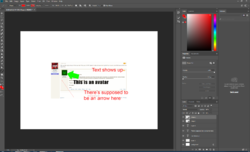
Can you post a screenshot of the layers panel and the tool settings your using to create the arrow?
 
Sorry, couldn't answer that quick because buzy day at work. ^_^

is this wat you mean? In the top the settings for the arrow and lower right corner the 'layers'?
 

Attachments

  • IamSam.png
    IamSam.png
    235.1 KB · Views: 2
Sorry, couldn't answer that quick because buzy day at work. ^_^
I understand.

is this wat you mean?
Well.........yes but no. You have 3 text layers, 1 of which I don't see on the canvas. You have 2 shape layers that I'm going to assume make up the arrow. All your settings seem to be correct.

Take this screenshot and add an arrow to it (no text), and lets see what happens. Don't add anything else to it as in a background or extended canvas. Explain how you save the screenshot.Screen Shot 2018-03-20 at 12.30.57 PM.png
 
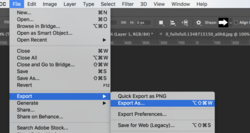
If your using EXPORT > EXPORT AS...............don't.
Screen Shot 2018-03-20 at 12.51.12 PM.png

When you save................go to FILE > SAVE AS > NAME FILE (if needed) > FILETYPE JPG > SAVE > SET QUALITY
 
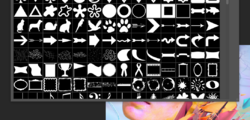
Also, rather than using the Line Tool, use the Custom Shape Tool and choose a nice arrow.

Screen Shot 2018-03-20 at 12.48.57 PM.png
 
Thank you for all your advices! I don't really know what I did wrong before but now following your advices apparently it works (see picture in .jpg, .png als works).

Thanks again!
 

Attachments

  • SAMLine.jpg
    SAMLine.jpg
    267.9 KB · Views: 4

Back
Top