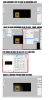
Hi JTL, of course there are several ways to do this.
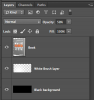
I try to work non-destructively and tend to structure my layers so that I can go back and make any changes I need.
Here's my approach. There are other ways to accomplish this effect.
Start with the dark (black in this case) BG.

Add in the object, in this case a book as in your example. I do this so I know where the light effect/gradient needs to be located.

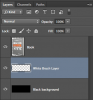
I create a new layer above the BG or between the two existing layers. I name it
White Brush layer.
I select my
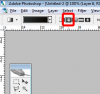
Brush Tool with a large soft brush. Make sure your foreground color is set to white, your
Brush Painting Mode is set to normal, your
Brush opacity is set to 100%, and your
Brush flow is set to 100%.

Make a single Brush stroke/click centered over the the book. Since we are going to lower this layers opacity which will cause the brush stroke/click to become smaller, I make it fairly large. If you don't like the result, simply hit Command/Control + Z to back up and try again.

Reduce the
White Brush layers opacity to where you like it.

Simple and can be altered at anytime!