
Photoshop Gurus Forum
Welcome to Photoshop Gurus forum. Register a free account today to become a member! It's completely free. Once signed in, you'll enjoy an ad-free experience and be able to participate on this site by adding your own topics and posts, as well as connect with other members through your own private inbox!
Photoshop Gurus Forum
Give your portraits the silky skin effect with Photoshop's High Pass filter by following our quick step-by-step guide.
Of course, most of us don't have the time or patience for such work, but luckily there are things we can do to cut corners. One of the best loved - not to mention fastest - skin smoothing techniques is the High Pass method. It gives your subject silky-smooth skin while still retaining some of the detail and texture. Therefore you don't end up with the dreaded 'plastic look' some methods can give. Instead, you get beautifully realistic smoothness.
Here's the quick method below, but if you want greater control over the strength of the smoothing effect, you could try applying a touch of Gaussian Blur (Filter>Blur>Gaussian Blur) between Steps 02 and 03.
As the image is inverted at this stage, the greater the blur radius value, the more subtle the effect. When painting the mask in Step 03, you don't need to be too precise. A few quick strokes with a large, soft-edged brush should do the trick.
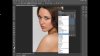
01. Copy the layer
Open 'highpassstart.jpg'. Press Cmd/Ctrl+J to copy the layer. Note: if you’re working with lots of layers, highlight the top layer and press Cmd/Ctrl+Shift+Alt+E to merge a copy. Rename the layer 'High Pass', then click the Blend Mode drop-down and choose Overlay.
02. Overlay and High Pass
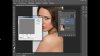
Go to Filter>Other>High Pass. Set Radius to 9px and hit OK. This applies sharpening, but when inverted, it turns into a softening effect, so go to Image>Adjustments>Invert (or press Cmd/Ctrl+I) to invert the colours on the 'High Pass' layer.
03. Smooth the skin
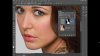
Hold Alt and click the Add Layer Mask icon at the bottom of the Layers Panel to add a full Layer Mask that completely hides the softening. Now grab the Brush tool, choose a soft-edged brush tip and set colour to white, then paint over the skin to reveal the 'High Pass' layer.
Source : http://www.creativebloq.com/tutorial/high-pass-skin-smoothing-photoshop-812591
Of course, most of us don't have the time or patience for such work, but luckily there are things we can do to cut corners. One of the best loved - not to mention fastest - skin smoothing techniques is the High Pass method. It gives your subject silky-smooth skin while still retaining some of the detail and texture. Therefore you don't end up with the dreaded 'plastic look' some methods can give. Instead, you get beautifully realistic smoothness.
Here's the quick method below, but if you want greater control over the strength of the smoothing effect, you could try applying a touch of Gaussian Blur (Filter>Blur>Gaussian Blur) between Steps 02 and 03.
As the image is inverted at this stage, the greater the blur radius value, the more subtle the effect. When painting the mask in Step 03, you don't need to be too precise. A few quick strokes with a large, soft-edged brush should do the trick.
01. Copy the layer
Open 'highpassstart.jpg'. Press Cmd/Ctrl+J to copy the layer. Note: if you’re working with lots of layers, highlight the top layer and press Cmd/Ctrl+Shift+Alt+E to merge a copy. Rename the layer 'High Pass', then click the Blend Mode drop-down and choose Overlay.
02. Overlay and High Pass
Go to Filter>Other>High Pass. Set Radius to 9px and hit OK. This applies sharpening, but when inverted, it turns into a softening effect, so go to Image>Adjustments>Invert (or press Cmd/Ctrl+I) to invert the colours on the 'High Pass' layer.
03. Smooth the skin
Hold Alt and click the Add Layer Mask icon at the bottom of the Layers Panel to add a full Layer Mask that completely hides the softening. Now grab the Brush tool, choose a soft-edged brush tip and set colour to white, then paint over the skin to reveal the 'High Pass' layer.
Source : http://www.creativebloq.com/tutorial/high-pass-skin-smoothing-photoshop-812591