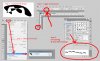
Here is what I did. I only made a rough selection of a portion. This will end up being a bit tedious and require some experimentation after your selection is made, but it will work.
I like the quick select tool. Here I used it both add and subtract pixels to define the borders. This means you have to zoom in pretty tight to see where the white has been selected when you only want the blue selected, especially as noted above where the blue is almost white due to the high reflection. I also used the lasso tool to cut out some of the areas which were too close in tone. Once you get your selection made, make a new layer of it.
Now you will use the gradient tool. It will take a few layers to get each area of blue to the right hue and shade. Make a layer above and clip it to the blue area selection. Change your foreground color to blue, picked from the middle blue or whatever color you want. I chose the hue of the middle blue as it is. Then make that color darker for the area which is really white. Set the tool to blue and transparent. Place the tool at the outer edge of the lightness, draw it out to the border of where the color changes darker. This will take a little playing around, but you will get the hang of it after you do an area or two.
Now set the blend mode of that layer to hard light. When you get to the darker area, you may want to choose a different blend mode such as overlay. You'll need to change the color to a darker blue when you are adding the gradient over the light areas, and a lighter, brighter blue when you adjust the dark areas.
Using blend modes allows the underlying pattern to show through the color you have added.
See if you can make heads or tails of this method. It is hard to explain if you haven't used gradients before, but as I said, playing around with it should give you the idea. I hope this helps.
I am having trouble uploading files at the moment. I'll add my example as soon as this changes.