My problem is this:
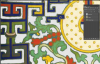
I am taking a PNG image and then loading it into photoshop, I use the magic selection tool and the other auto selection tool as well as select by color etc to separate different elements of the design in the image. Once I have an element selected I cut it from the base layer and paste it in place to another layer. The problem is that around the edges of where my selection was, it is missing some richness in color, or perhaps some opacity, i'm not sure but in any case - A duplicate of the original looks different then the original with an element cut from it and then re-pasted right into place. Why?! :banghead:
I am taking a PNG image and then loading it into photoshop, I use the magic selection tool and the other auto selection tool as well as select by color etc to separate different elements of the design in the image. Once I have an element selected I cut it from the base layer and paste it in place to another layer. The problem is that around the edges of where my selection was, it is missing some richness in color, or perhaps some opacity, i'm not sure but in any case - A duplicate of the original looks different then the original with an element cut from it and then re-pasted right into place. Why?! :banghead: