
I've been using PS version 27.7.0 for a few months with no issues. But an odd thing has now happened twice in a few days and I can't figure out why. It just happened again with this file.
My normal PS desktop has the Adjustments panel docked to the upper right and the Layer/Path/Channel panels docked immediately below, as in the first image. Yet somehow, when I open random (different) files, the Layer/Path/Channel panel sometimes collapses down to the bottom, as shown in image 2. In the collapsed state, I thought that I could simply grab the top border of the panel and drag it upward to restore its size, but that doesn't work. I also thought the panels had somehow become undocked, but that doesn't seem to be the case, either. Not knowing what to do, I double-clicked on the collapsed panels, which magically restored them. But I have no idea why that worked.
Any ideas on what this might be?
Rich
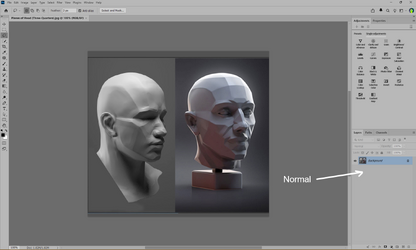
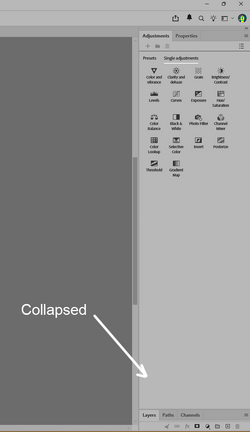
My normal PS desktop has the Adjustments panel docked to the upper right and the Layer/Path/Channel panels docked immediately below, as in the first image. Yet somehow, when I open random (different) files, the Layer/Path/Channel panel sometimes collapses down to the bottom, as shown in image 2. In the collapsed state, I thought that I could simply grab the top border of the panel and drag it upward to restore its size, but that doesn't work. I also thought the panels had somehow become undocked, but that doesn't seem to be the case, either. Not knowing what to do, I double-clicked on the collapsed panels, which magically restored them. But I have no idea why that worked.
Any ideas on what this might be?
Rich
