
Oh for Chrissake!
Well-Known Member
- Messages
- 83
- Likes
- 7
Hi folks,
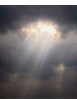
Let's say I've got a stormy cloudy sky. Very dark clouds. I want to draw a single, thin ray of light coming through the clouds.
By looking at actual photos, I thought I could put the JPG image on Layer One.
Then using the Eraser Tool, I could erase in a straight line to simulate the ray of light.
But looking at that ray, the color isn't exactly yellow or even white. It's more like much lighter shades of black.
Is there a way to erase something in a toned-down way, as opposed to erasing it entirely? I'm going to guess in advance it has something to do with the Opacity settings.
Thanks!
Jesse
Let's say I've got a stormy cloudy sky. Very dark clouds. I want to draw a single, thin ray of light coming through the clouds.
By looking at actual photos, I thought I could put the JPG image on Layer One.
Then using the Eraser Tool, I could erase in a straight line to simulate the ray of light.
But looking at that ray, the color isn't exactly yellow or even white. It's more like much lighter shades of black.
Is there a way to erase something in a toned-down way, as opposed to erasing it entirely? I'm going to guess in advance it has something to do with the Opacity settings.
Thanks!
Jesse
Last edited:


