What's new
Photoshop Gurus Forum

Welcome to Photoshop Gurus forum. Register a free account today to become a member! It's completely free. Once signed in, you'll enjoy an ad-free experience and be able to participate on this site by adding your own topics and posts, as well as connect with other members through your own private inbox!

Trying to Replicate a Web Element


zoe20

Power User
Messages
250
Likes
95
Hi Gurus today while trying to learn Photoshop i come across a nice web element which i want to replicated and i think i get most of the things . Can you give me your inputs and tutorials etc.. to learn further please ? The tricky part i think is to distribute the dividers evenly across the path . Any help and tutorials is really appreciated. I attached the source psd

cheers
zoe

This is the one am trying to replicate:

image.png


This is my attempt :


zoes_web_graphic.png

This is the source psd :


View attachment zoes_web_graphic.psd
 

Attachments

Last edited:
Hi Zoe, read steps 20 and 21 of this TUTORIAL to see if this answers your question, if not, let me know and I will see what else I can find!

Also, I will add when rotating a line, you can set the point of rotation (white arrow) and the degrees of rotation (red arrow).

Screen Shot 2014-02-16 at 10.31.31 AM copy.png
 
Last edited:
Iamsam still i don find out the solution.How can i distribute them evenly across the circle.I think its really useful technique to learn am eagerly awaiting to learn from the gurus liek an others.

regards
zoe
 
Hey Zoe.

Here's how you do it.......one way anyhow!

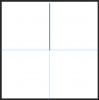
Set some guidelines in the center of the document.
Go to VIEW > SNAP Turn on Snap.
Go to VIEW > SNAP TO > tick on Guides.
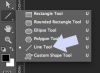
Select your Line Tool.

Screen Shot 2014-06-01 at 9.09.15 AM copy.png

On the Line Tools option bar, set the tool mode to shape, and set the weight to 6px. You can set the color of the line as well.

Screen Shot 2014-06-01 at 9.09.23 AM copy.png

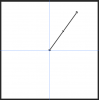
On the top, vertical guide line, click and drag a line (on the guide line) down to the center.

Screen Shot 2014-06-01 at 9.09.49 AM.png

NOTICE that there are ten sections in the original graphic.
You need to calculate the degrees of rotation.
A 360 degree ellipse DIVIDED by 10 equals 36.

Hit Comnd/cntrl + T to enter the transform function.
In the option bar, set the reference point location (left arrow) to the bottom center. Set the Rotation to 36 (right arrow).

Screen Shot 2014-06-01 at 9.11.14 AM copy.png

This will move the line. Hit enter or click the checkmark when your done.

Screen Shot 2014-06-01 at 9.11.23 AM.png

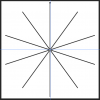
Press and hold the following keys, SHIFT + ALT/OPTION + COMMAND/CONTROL.....then hit the T key 9 times.
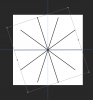
It should now look like this....

Screen Shot 2014-06-01 at 9.12.22 AM.png

In order to make it match the original we must now rotate using Comnd/Cntrl + T, rotate, hit OK.

Screen Shot 2014-06-01 at 9.13.28 AM.png

Now you have you divided lines, evenly spaced. Done.

Add the rest of your elements for the graphic....

Screen Shot 2014-06-01 at 9.16.51 AM.png
 
Last edited:

Back
Top