
rhstanley3
Well-Known Member
- Messages
- 58
- Likes
- 8
Hello, and welcome to my first photoshop tutorial. In this tutorial, i will show you how to make a basic fireball, using nothing but the standard paintbrush and a standard smudge tool. Lets get started. First thing that we'll do is obviously open up a canvas. For this tutorial, we'll be using a 800x800 pixel canvas at 72 DPI.
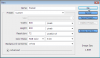
The next thing that we do is to select the paintbrush tool. If you want, make a new layer like I did. this mainly makes it easier to place the fireball on different places in an image if i were going to use it again. I'm going to go with a blue fireball, although you can do this with any color. First thing to do is open the color pallet, and then put the mode into "only web colors" if you don't have this selected already. Then select the second darkest color that you chose.
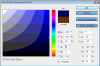
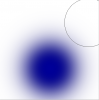
Now, make your brush diameter 600 pixels. You can do this easily using the hot key "]" which enlarges the brush for each time it is pressed. Make sure your brush has a hardness of 0%, and then click towards the bottom of the canvas.
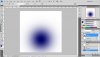
next, you decrease the brush diameter, which can also be done with the hot key "[", to 500 pixel diameter. *NOTE: It is better to use the brackets to increase/decrease brush size as it does a great job of keeping the circles even.* Now go back to the color picker, and pick the next-brightest blue in the row.
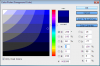
After you have picked your color, click in the middle of the first brush. this will make the center brighter, and the color will die off and get darker as it reaches the edge of the circle.
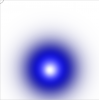
Keep repeating this, moving up until you reach the top, and then moving left towards white. when you get to a brush size of around 175, if you use the brackets you're going to want to decrease by two sizes instead of one. This is what you should end up with.
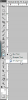
Now, for the final step. You're going to switch to the smudge tool. Instead of telling you how to find it I'll show you where it is. To make the pop-up menu in the picture appear, when you click on the tool, hold down the left mouse button until the menu appears.
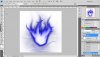
Finally, use the smudge tool at around 90 pixel diameter. click in the center of the ball, and drag out with a wavy-like pattern. use different brush-diameters to get different flame thicknesses. also, pull in the excess color on the bottom flame in, and then do the same wave pattern to get that heat-wave effect. Here's what mine looks like after about 5 minutes worth of work.
The great thing about this tut is that it doesn't only have to be used for fireballs. you can make a floating light for a fantasy-based image, or a fairy, or a plasma ball, or many other things. using this with yellow and a lowered opacity, you can make a light source. you can also make more realistic fireballs by integrating more colors. (i.e. using red, orange and yellow following this same principle to make a more realistic fireball.) I hoped you enjoyed this tutorial, and may you use it well

The next thing that we do is to select the paintbrush tool. If you want, make a new layer like I did. this mainly makes it easier to place the fireball on different places in an image if i were going to use it again. I'm going to go with a blue fireball, although you can do this with any color. First thing to do is open the color pallet, and then put the mode into "only web colors" if you don't have this selected already. Then select the second darkest color that you chose.
Now, make your brush diameter 600 pixels. You can do this easily using the hot key "]" which enlarges the brush for each time it is pressed. Make sure your brush has a hardness of 0%, and then click towards the bottom of the canvas.
next, you decrease the brush diameter, which can also be done with the hot key "[", to 500 pixel diameter. *NOTE: It is better to use the brackets to increase/decrease brush size as it does a great job of keeping the circles even.* Now go back to the color picker, and pick the next-brightest blue in the row.
After you have picked your color, click in the middle of the first brush. this will make the center brighter, and the color will die off and get darker as it reaches the edge of the circle.
Keep repeating this, moving up until you reach the top, and then moving left towards white. when you get to a brush size of around 175, if you use the brackets you're going to want to decrease by two sizes instead of one. This is what you should end up with.
Now, for the final step. You're going to switch to the smudge tool. Instead of telling you how to find it I'll show you where it is. To make the pop-up menu in the picture appear, when you click on the tool, hold down the left mouse button until the menu appears.
Finally, use the smudge tool at around 90 pixel diameter. click in the center of the ball, and drag out with a wavy-like pattern. use different brush-diameters to get different flame thicknesses. also, pull in the excess color on the bottom flame in, and then do the same wave pattern to get that heat-wave effect. Here's what mine looks like after about 5 minutes worth of work.
The great thing about this tut is that it doesn't only have to be used for fireballs. you can make a floating light for a fantasy-based image, or a fairy, or a plasma ball, or many other things. using this with yellow and a lowered opacity, you can make a light source. you can also make more realistic fireballs by integrating more colors. (i.e. using red, orange and yellow following this same principle to make a more realistic fireball.) I hoped you enjoyed this tutorial, and may you use it well
Last edited:


