
Photoshop Gurus Forum
Welcome to Photoshop Gurus forum. Register a free account today to become a member! It's completely free. Once signed in, you'll enjoy an ad-free experience and be able to participate on this site by adding your own topics and posts, as well as connect with other members through your own private inbox!
You are using an out of date browser. It may not display this or other websites correctly.
You should upgrade or use an alternative browser.
You should upgrade or use an alternative browser.
Losing colours when saving an image (PS CS5)
- Thread starter splash104
- Start date
Go to Image>mode> RGB you may find you have it set to cmyk or indexed colour
Image>Mode>RGB color ticked. But same result, losing some effects/colors after saving as jpeg or png.

Hoogle
Guru
- Messages
- 7,940
- Likes
- 2,488
Sorry Just re read 1 of your posts where you say it was for jpegs and pngs.
So your going to save as and not save for web devices.
You are setting quality as high as you can on jpeg
If you have several layers of different blending modes and opacities then it is reccommended that you also merge all layers together which will create a new layer on top of your layers but with all of them merged. The way to do this is select the top layer then press control+alt+shift and E at the same time.
You have your mode set to 8 bit colour or 16 bit
You have your monitor set up in the same colour profile as adobe
http://windows.microsoft.com/en-US/...anagement-settings-frequently-asked-questions
And that is all I can think of at the moment But I should say it is worth a mention that you will loose some colour detail when you are saving as a lossy format ie jpeg or png as they compress the file.
So your going to save as and not save for web devices.
You are setting quality as high as you can on jpeg
If you have several layers of different blending modes and opacities then it is reccommended that you also merge all layers together which will create a new layer on top of your layers but with all of them merged. The way to do this is select the top layer then press control+alt+shift and E at the same time.
You have your mode set to 8 bit colour or 16 bit
You have your monitor set up in the same colour profile as adobe
http://windows.microsoft.com/en-US/...anagement-settings-frequently-asked-questions
And that is all I can think of at the moment But I should say it is worth a mention that you will loose some colour detail when you are saving as a lossy format ie jpeg or png as they compress the file.
Sorry Just re read 1 of your posts where you say it was for jpegs and pngs.
So your going to save as and not save for web devices.
You are setting quality as high as you can on jpeg
If you have several layers of different blending modes and opacities then it is reccommended that you also merge all layers together which will create a new layer on top of your layers but with all of them merged. The way to do this is select the top layer then press control+alt+shift and E at the same time.
You have your mode set to 8 bit colour or 16 bit
You have your monitor set up in the same colour profile as adobe
http://windows.microsoft.com/en-US/...anagement-settings-frequently-asked-questions
And that is all I can think of at the moment But I should say it is worth a mention that you will loose some colour detail when you are saving as a lossy format ie jpeg or png as they compress the file.
These are options I see. Which do you think would work?
Attachments
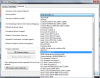
the 1 selected should be the best option
What about the rest of the options? As I already have this one selected but no help.
mattattack347
Power User
- Messages
- 394
- Likes
- 77
Well if you ask me if it is a "Low res pic"
Just screen shot it and copy and paste it into regular paint.
Then select your image Copy.
Then make a new image.
And paste then save!
Just screen shot it and copy and paste it into regular paint.
Then select your image Copy.
Then make a new image.
And paste then save!

jaysuess
Well-Known Member
- Messages
- 71
- Likes
- 27
This has popped up in a previous post. Here is a very simple workaround (there are others but this is the easiest). Set your color settings to Monitor Color. Go to Edit>Assign Profile... and select "Don't Color Manage This Document". Make sure View>Proof Colors is unchecked. Now when you save for web you won't get the dreaded Photoshop RGB color shift. (Be sure "Convert to sRGB" in the Save for Web dialogue box is unchecked). And Presto! Hope this helps.
This has popped up in a previous post. Here is a very simple workaround (there are others but this is the easiest). Set your color settings to Monitor Color. Go to Edit>Assign Profile... and select "Don't Color Manage This Document". Make sure View>Proof Colors is unchecked. Now when you save for web you won't get the dreaded Photoshop RGB color shift. (Be sure "Convert to sRGB" in the Save for Web dialogue box is unchecked). And Presto! Hope this helps.
I have tried it and I think it should have worked but it didn't :/ ... Seems I did some mistake in the layers or something ... don't know !