
ok guys im new here, so be gentle. I am trying to add a fabric texture to some colors but dont want the texture to adjust the color. does anybody have any suggestions on what i can search for to find out about that or any suggestions on how to accomplish that?
Photoshop Gurus Forum
Welcome to Photoshop Gurus forum. Register a free account today to become a member! It's completely free. Once signed in, you'll enjoy an ad-free experience and be able to participate on this site by adding your own topics and posts, as well as connect with other members through your own private inbox!
You are using an out of date browser. It may not display this or other websites correctly.
You should upgrade or use an alternative browser.
You should upgrade or use an alternative browser.
texture with color
- Thread starter brandman
- Start date

Paul
Former Member
- Messages
- 10,933
- Likes
- 5,560
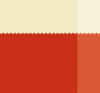
Make a layer with your colour on it, then make a new layer with your texture on it over lay and there you have it.
View attachment 17301
View attachment 17301

ibclare
Queen Bee
- Messages
- 9,890
- Likes
- 4,028
This isn't something I do much, textures that is. So I have no idea if there is something specific to do. Maybe someone else will.
Have you tried changing the blend mode either on the layer fx texture option or on the layer you are clipping (I assume you're using clipping layer). Try overlay, soft light, or hard light. You'll need to tweak your color with either a hue/sat adjustment or a color layer. Since I'm not sure of your exact need I can't advise anymore than that. You can upload images for us to see. Just use the tree icon in the reply box and choose the from computer option.
And welcome to the forum :mrgreen:
Have you tried changing the blend mode either on the layer fx texture option or on the layer you are clipping (I assume you're using clipping layer). Try overlay, soft light, or hard light. You'll need to tweak your color with either a hue/sat adjustment or a color layer. Since I'm not sure of your exact need I can't advise anymore than that. You can upload images for us to see. Just use the tree icon in the reply box and choose the from computer option.
And welcome to the forum :mrgreen:
Smokey2011
Well-Known Member
- Messages
- 119
- Likes
- 5
this is another vague question.
what do you mean by "add texture to colors"... are your "colors" on a separate layer?
make sure that the layer your colors are on is your selected layer.
go to the 'blending options' window for this particular layer that your colors are on
check on "Bevel and Emboss" and make sure 'contour' is *not* checked, and 'texture' *is* checked on.
it will now add a texture to your colors layer without altering their color. you can change textures by clicking the thumbnail in the window that popped up and choosing a different texture. adjusting the 'depth' slider will either intensify the texture or make it less visible depending on which way you pull the slider.
what do you mean by "add texture to colors"... are your "colors" on a separate layer?
make sure that the layer your colors are on is your selected layer.
go to the 'blending options' window for this particular layer that your colors are on
check on "Bevel and Emboss" and make sure 'contour' is *not* checked, and 'texture' *is* checked on.
it will now add a texture to your colors layer without altering their color. you can change textures by clicking the thumbnail in the window that popped up and choosing a different texture. adjusting the 'depth' slider will either intensify the texture or make it less visible depending on which way you pull the slider.
Smokey2011
Well-Known Member
- Messages
- 119
- Likes
- 5
thanks smokey, figured there had to be some way!
this is an automated way to do it. the problem is that the texture repeats itself, so it's clear to see that it's a digital effect and does not look natural. every 1 inch x 1 inch or so, the texture repeats so it's easy to see that it's a pattern. there may be a way to scatter it but if there is I don't know how to do that.
I use photoshop primarily for drawing and painting, so when I add textures to my drawings, I actually paint them on using a texture brush like chalk, pastels, etc. I paint these on a layer set to overlay ontop of the drawing and follow the contours of the artwork to make it look natural. this way i can paint on the texture as randomly as I like. this is where a tablet comes in. it's near impossible with a mouse. without a tablet you're just wasting your time with photoshop.
but to explain this process is a little more difficult. first of all, the original poster would need to have a textured brush like chalks or pastels for example. i'm sure they come with photoshop but they're not as natural as i'd like. I use custom brushes. second, the OP would need a tablet. if they have both, then I could explain a better way to do it but for now, the automated way will do.
ibclare
Queen Bee
- Messages
- 9,890
- Likes
- 4,028
t
this way i can paint on the texture as randomly as I like. this is where a tablet comes in. it's near impossible with a mouse. without a tablet you're just wasting your time with photoshop.
Isn't it funny though how people used Photoshop to great advantage for so many years when there weren't tablets . . . just sayin.
Smokey2011
Well-Known Member
- Messages
- 119
- Likes
- 5
tablets existed in the 1980s when I was using a commodore 64 for graphics.
Tablets have been around longer than photoshop, and have always been available to use.
i hope this doesn't mean that as a moderator, you're still using a mouse?
Tablets have been around longer than photoshop, and have always been available to use.
i hope this doesn't mean that as a moderator, you're still using a mouse?
Smokey2011
Well-Known Member
- Messages
- 119
- Likes
- 5
don't want to put you on the spot.
go get a wacom bamboo. they can be found for under a 100 bucks. that's pocket change. especially for someone who loves photoshop. once you get it, you'll see what you're missing. and from there, you'll find that you want to upgrade to higher models in the future. there are things that you are totally *unable* to do right now with just a mouse. And I mean, physically *unable* to do with photoshop - it was *meant* for use with a tablet. but because in the late 80s/early 90s when photoshop first became available to the public, tablets were still very expensive and unnafordable for the general user, so they made sure that a mouse could be used, even if it hampered its performance.
so, you're able to access about 50% of photoshop's power right now with a mouse. get a tablet and you unleash the next 50% that you have been unable to do, namely painting.
go get a wacom bamboo. they can be found for under a 100 bucks. that's pocket change. especially for someone who loves photoshop. once you get it, you'll see what you're missing. and from there, you'll find that you want to upgrade to higher models in the future. there are things that you are totally *unable* to do right now with just a mouse. And I mean, physically *unable* to do with photoshop - it was *meant* for use with a tablet. but because in the late 80s/early 90s when photoshop first became available to the public, tablets were still very expensive and unnafordable for the general user, so they made sure that a mouse could be used, even if it hampered its performance.
so, you're able to access about 50% of photoshop's power right now with a mouse. get a tablet and you unleash the next 50% that you have been unable to do, namely painting.
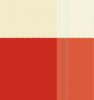
i have specific color values that i want to keep when i overlay or any blending option the texture over the color layer it alters the colors to something that is not the same color value that i'm wanting. i have desaturated the texture layer and also tried inverting it as it was a darker texture, to no avail. I have also lowered the opacity and i loose detail in the texture. im just curious if im thinking maybe i can throw an adjustment layer over the blended texture to adjust the color but dont know how to get that adjustment to the exact color i am wanting. sorry if i seem to vague. i dont really know what other terminology to use to explain what i am trying to do. thanks for everyones replies, they are much appreciated. if anybody knows what im saying....HELP!! lol
The adage "A picture is worth a thousand words" refers to the notion that a complex idea can be conveyed with just a single still image. It also aptly characterizes one of the main goals of visualization, namely making it possible to absorb large amounts of data quickly.
Smokey2011
Well-Known Member
- Messages
- 119
- Likes
- 5
try this again:
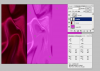
1. right-click on the layer in the layers pallet and select "blending options..."
2. place a chackmark beside "Bevel and Emboss" and underneath that, make sure "Texture" has a checkmark. Do not place a checkmark beside "Contour".
3. in the middle of this window, you see the word "Pattern:" with a thumbnail beside it. Click the thumbnail to choose from different patterns.
4. adjust the "Depth" slider to a value between +1 and +20. also, make sure that "Preview" on the right side of this window has a checkmark.
your texture is now added. the color should remain the same, more so if your depth slider is lower or closer to +1.
I could easily download your image and do it but what good is that to you? follow the instructions and this will work.
1. right-click on the layer in the layers pallet and select "blending options..."
2. place a chackmark beside "Bevel and Emboss" and underneath that, make sure "Texture" has a checkmark. Do not place a checkmark beside "Contour".
3. in the middle of this window, you see the word "Pattern:" with a thumbnail beside it. Click the thumbnail to choose from different patterns.
4. adjust the "Depth" slider to a value between +1 and +20. also, make sure that "Preview" on the right side of this window has a checkmark.
your texture is now added. the color should remain the same, more so if your depth slider is lower or closer to +1.
I could easily download your image and do it but what good is that to you? follow the instructions and this will work.