Photoshop Gurus Forum
Welcome to Photoshop Gurus forum. Register a free account today to become a member! It's completely free. Once signed in, you'll enjoy an ad-free experience and be able to participate on this site by adding your own topics and posts, as well as connect with other members through your own private inbox!
You are using an out of date browser. It may not display this or other websites correctly.
You should upgrade or use an alternative browser.
You should upgrade or use an alternative browser.
How to make a smooth and soft icons
- Thread starter Aviorrok
- Start date



Hey =)
Are you trying to replicate the crispness of the second image, or are you trying to replicate the smoothness of the first image?
I try to replicate the second image (with bright background)
you can help me?

- Messages
- 24,325
- Likes
- 13,734
Hi Aviorrok,
Her's a quick description......
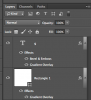
Create a large rectangle/square (I used 500 x 500 px) using the Rectangle Tool. Then open the layer styles for that layer by double clicking the layer.
Check the Gradient overlay and create a blue to lighter blue gradient.


Next, create a text layer with the Type Tool by typing a lower case g.
Use Command/Control + T to transform the g to the size you like. Hit Command/Control + D to deselect.

Again open a layer style for the text layer.
Check the Gradient Overlay again and create a gradient for the g.


Then add a Bevel and Emboss....


That should do it.
Her's a quick description......
Create a large rectangle/square (I used 500 x 500 px) using the Rectangle Tool. Then open the layer styles for that layer by double clicking the layer.
Check the Gradient overlay and create a blue to lighter blue gradient.
Next, create a text layer with the Type Tool by typing a lower case g.
Use Command/Control + T to transform the g to the size you like. Hit Command/Control + D to deselect.
Again open a layer style for the text layer.
Check the Gradient Overlay again and create a gradient for the g.
Then add a Bevel and Emboss....
That should do it.
Last edited:
Explain what you mean by smooth.
My example is smooth.
In my message the "g" look with shadow no?