There are a few things going on. First, when you open an image in Photoshop (a "normal" RGB image), Photoshop separates the red, green and blue pixels into separate channels, which you can see in your channels palette. So right there, before you've touched anything, the image is now three times its original size in Photoshop because Photoshop has duplicated it three times into three individual color channels.
The other—often bigger—thing going on has to do with image compression and the formula for how Photoshop calculates image size. The image size calculation in Photoshop is based on Pixel Width x Pixel Height,
regardless of the compression of the original image. When you compress a JPEG image, it's file size gets substantially smaller when you save it to a website or look at it in your Downloads folder. But in Photoshop, as long as the pixel dimensions are unchanged, the file size will be unchanged, even if you have greatly compressed the file.
Here's the formula to calculate the Photoshop file size:
- Multiply Pixel Width x Pixel Height.
- Multiply that result by 3 (because of the three color channels).
- Divide by 1,024 to convert to KB.
- Divide once again by 1,024 to convert to MB.
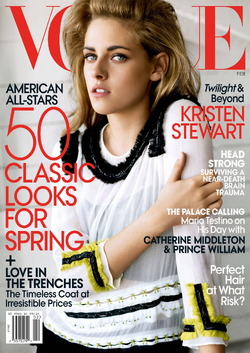
Here's an example using a large, high quality Vogue Magazine cover. When I look in my Download folder, it says the file size is 383 KB. It's pixel dimensions are 1360 x 1920 and the file size (in Photoshop) is 7.47 MB.
Then I re-saved the image again as a compressed jpeg. In my Download folder the original file shows as 383kb and the newly compressed version shows as 165kb. But even though file #2 has been compressed, the pixel dimensions remain unchanged, therefore the Photoshop file size remains unchanged as 7.47 MB for both files.
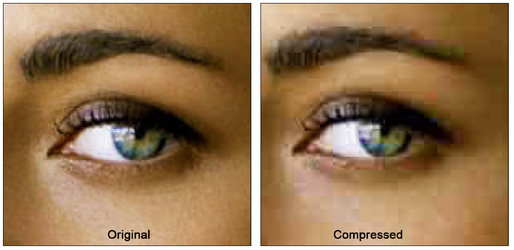
If you look farther down below, I posted a side-by-side comparison of her eye—greatly magnified—in the original image vs. my highly compressed image. As you can see, the compressed image has noticeable jpeg artifacts—those distorted mosaic-looking squares. When viewed at a small magnification, the compressed file looks just fine, but it does not stand up to high magnification. But both images have the same pixel dimension, therefore both images are the same file size in Photoshop.
The bottom line is that Photoshop doesn't care if you have nice pixels or crappy pixels when calculating file size. It's simply pixel width x pixel height (...times 3, etc.)