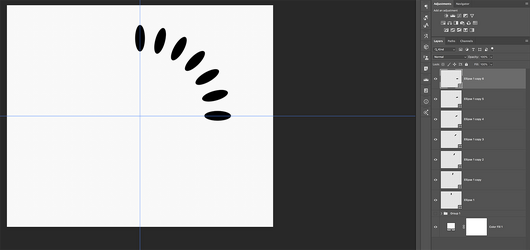
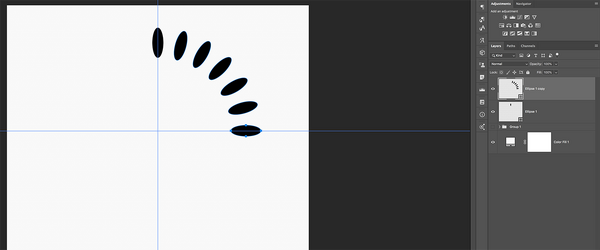
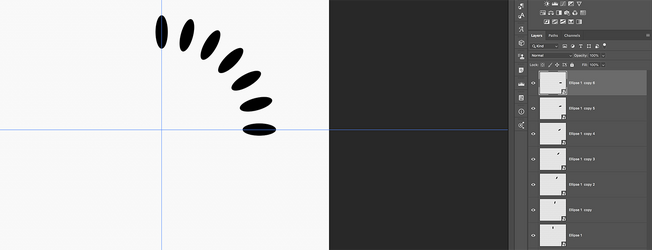
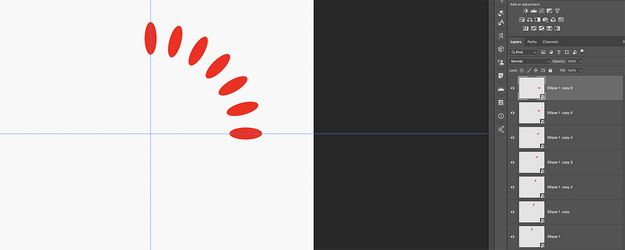
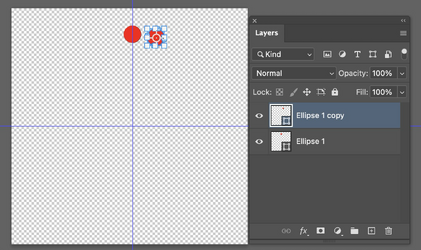
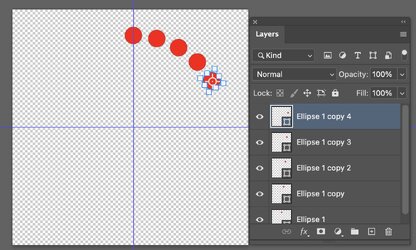
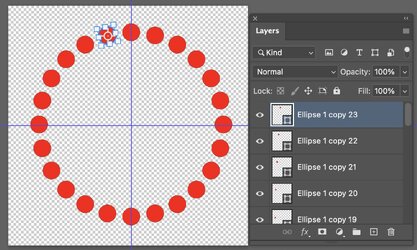
I thought I'd start a new thread rather than add confusion to Alexandria's recent post. With the caveat that I am still using 15-year-old CS5, here are a few observations about rotating an object around a circular path.
Raster Layers
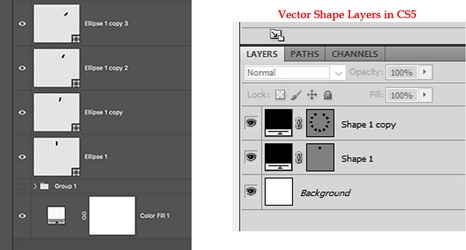
Vector Shape Layers
Raster Layers
- Raster layers are straightforward.
- Select the object and go to Free Transform (Ctrl+T). Move the axis of rotation to the center of your circular path. Rotate the item by the desired amount.
- By pressing Shft+Ctrl+Alt+T repeatedly, the rotation will repeat around the circular path and each subsequent copy will be on its own layer.
- In CS5, this will work regardless of which tool happens to be active. Specifically, the Move tool being active—or not—makes no difference at all.
Vector Shape Layers
- Following the steps above will accomplish the rotations, but they will all occur on one layer rather than numerous individual layers.
- I discovered a slightly annoying, but very easy workaround, which successfully performs the rotations of vector shapes into separate, individual layers.
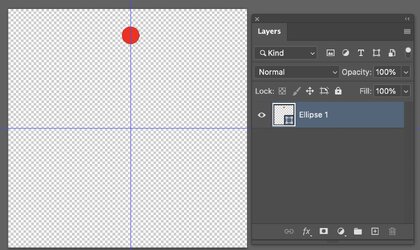
- Create vector shape #1 on a new layer.
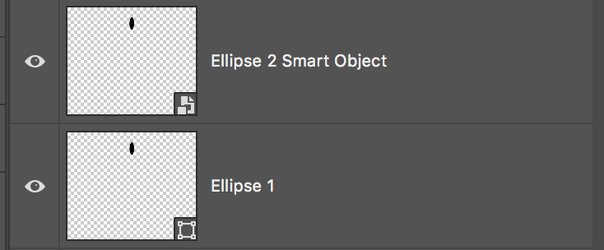
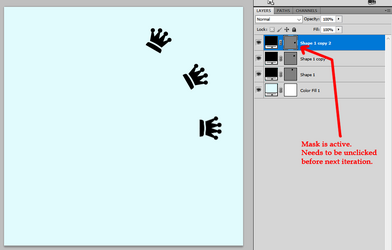
- In CS5, when you create a vector shape, the vector layer mask is automatically selected and active. Before doing anything else, you must unclick the layer mask to de-select it.
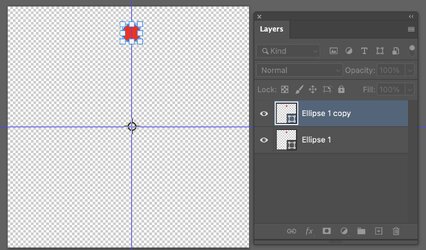
- Now go to Free Transform to perform your first rotation.
- For rotation #2, press Shft+Ctrl+Alt+T only one time. It will duplicate and rotate the shape onto a new layer. But... that new layer, once again, will have its mask active. You must first unclick the mask before proceeding further.
- Keep repeating Shft+Ctrl+Alt+T, but each time, you need to stop and unclick the layer mask before going further.