What's new
Photoshop Gurus Forum

Welcome to Photoshop Gurus forum. Register a free account today to become a member! It's completely free. Once signed in, you'll enjoy an ad-free experience and be able to participate on this site by adding your own topics and posts, as well as connect with other members through your own private inbox!

Amazing Photoshop


monir

New Member
Messages
3
Likes
0
Hi this is Monir. Few days back I've started to learn photoshop. Its so amazing to me that I cannot leave it. I wanna build up my career with photoshop.

Today I was replacing bicyle color with replace color command. I did it successfully until the bike is white or black. I can replace color if the bike is black or white. Can anybody tell me what's wrong here?

Thanks in advance.
 
Because Black or White are NOT colors but absences of color. The replace color function uses Hue and Saturation to alter the colors, If there is not color to begin with, this is hard to accomplish.

What you can do for those black/white part (providing there is at least a bit of gray) is add a new layer, brush some color over that part and then set the blending option to overlay
 
Replace color is a very basic command but not very sophisticated. It does what you can learn to do yourself but learn to do better and using multiple tools, picking the best one for the particular job.

Rob is right, you have to use other methods when dealing with black and white. White, as he stated, is fairly straightforward. You may need to experiment with the depth/darkness of the color you use in the above layer for that selection. It will probably require a darker color. But experiment with blend modes, overlay, color, soft light, hard light, vivid, etc., and you might want to try using opacity changes on the layer.

If it is black, reduce the color. It is not one simple step. But few things in Photoshop worth graduating to doing are accomplished in one or two steps. Here is a post I made describing one way to do that: http://www.photoshopgurus.com/forum...g-wood-cabinets-white-cs5.html#post1533602752

After that, you can follow the suggestions above.
 
Hello Rob and ibclare

Thanks for your help but I was not successfull.

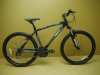
I've insert an image for your reference.

It would be nice if you can help me.

26'' Tufftrax Gent.jpg
 
Here I have made 2 screen captures. If you have very very basic skills in PS, you aren't really ready to do this kind of thing. Even if you follow these instructions to the letter, you won't understand what you're doing. Nevertheless ... hopefully you will learn from doing it. But please, don't skip over learning the basics or you will never truly improve your understanding of and skills in Photoshop.

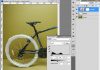
OK. PNG 1:

  • VERY rough selection of tire. I made a copy and put it on another layer (though not necessary, just easier to see I think).
  • Went to Layer>new adjustment layer>levels; dialogue box; be sure to check "use previous layer ..."
  • See levels setting. Now here is a point to remember. If you use the output slider you will make the shadows a little muddier and any color added will increase in its pastel qualities. So if you don't need it, don't use it.
  • Now you should have your black turned to white or pale grey, enough to add color to it
ColorAdjust.PNG

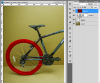
PNG 2:
  • Choose the color you want to make your object. Increase the depth/darkness of the color as the blend modes will affect the color. You'll need to experiment to get what you want.
  • Make a layer above and fill the layer with your color
  • Clip this to the layers below (specifically the selection)
  • To do that, hold down the alt/opt key and click on the line between the layers
  • Now experiment with blending modes and opacities to get the color you want. You may need to change the color you chose for the layer and fill it again (you don't need to unclip it). For blend modes, try overlay, soft light, hard light, vivid light. Try others if you want just to see the results and when you get a chance, find out how the blend modes work. In my example I use hard light.
ColorAdjust2.PNG
 
Hello ibclare

Thanks you so much for your help. You are really a good teacher. I owe to you.

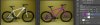
I was able to change the color according to your instruction. Here is an image for your information. The selection was rough.

If you can advise me about the prefect selection I'll be very happy.

Thanks in advance.

success.jpg
 

Back
Top