What's new
Photoshop Gurus Forum

Welcome to Photoshop Gurus forum. Register a free account today to become a member! It's completely free. Once signed in, you'll enjoy an ad-free experience and be able to participate on this site by adding your own topics and posts, as well as connect with other members through your own private inbox!

any tut From a simple black eyes to a great edited eyes?


daleboycute

Active Member
Messages
26
Likes
2
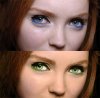
Im looking for a tutorial to achive this effect of eyes
sorry but I dont have the "before" picture of this but all I know its a simple black eyes
anyone who knows how to do this or have a link for the tutorial
I've been trying to archive this kind of eyes like 5months already. :sad:
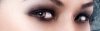
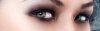
387490_10150361130737690_689607689_8494086_567167083_n.jpg

thank you so much!
 
I haven't looked at any of the posted tutorials above, but I have a simple way that I was taught (by Hoogle) to give the eyes that haunted, translucent look.

Make a layer above and fill it with 50% grey. Set the blend mode to overlay (or soft light if you prefer the result). Choose your dodge tool, set it at a very low opacity to begin with, then work on the eyes or any other dark areas you would like to lighten.

If this isn't the result you want, never mind :mrgreen:
 
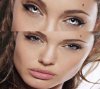
ibclare's technique is fantastic when the eyes already have detail. But for working with the eyes you're starting with, here is a simple methods for solving this problem quickly: Find an image of clear, colorful eyes. (Start a morgue file of things like this to cut down on searching in the future. A morgue file of all sorts of images: eyes, hands, teeth, cars, etc. is an important tool for any artist, especially retouchers). Place the new eyes on a layer and resize to fit the originals. Set your layer to "screen" and mask out any unwanted areas. Then use ibclare's method to add detail and pop the eyes.

sample1.jpg

Side note to ibclare: When painting on the gray layer, there is no need to use the dodge/burn tools. Simply use a brush with foreground color black, background color white. Anything darker than the 50% gray will darken the image, anything lighter will lighten it. Of course you can use the dodge/burn tool if necessary, but I always find I have better control with a brush. May just be a preference.
 
I to tend to use the black and white brush method on a 50% grey layer however the dodge and burn tools target specific areas and will only effect Highlights, Midtones and shadows where as using a paint brush it effects everything you paint over.

However there are exceptions to this if you set the brush mode to lighten then it will effect the darker areas if you set it to darken it will effect the lighter areas but still not as much control as dodge and burn tool.

Like anything in PS there are several ways and you have to find the method that works best for you.
 
the way I do this:
I select quickmask mode
adjust my brushsize
paint with black over the iris
select magic wand tool
I select the painted area
than I go to hue and saturation and change it to the color I want
Finally I check off the quickmask mode and go to layer's pallet and choose overlay

And voila Untitled-1.jpg
 
That looks very good.

Obviously, looks like you unless I'm wrong.

This effect is more striking on a subject with a less narrower eyes space. Or a quarter view like in the first image posted.

You can try zooming in a bit more to the eyes .....

just my 2 centavos.... lol....
 

Back
Top