What's new
Photoshop Gurus Forum

Welcome to Photoshop Gurus forum. Register a free account today to become a member! It's completely free. Once signed in, you'll enjoy an ad-free experience and be able to participate on this site by adding your own topics and posts, as well as connect with other members through your own private inbox!

Change flower wall to white


Primus

New Member
Messages
4
Likes
0
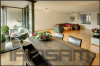
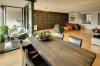
I'm completely new to Photoshop. A year ago a professional photographer made photos of my house, which is for sale. At that time there was one wall covered with black wallpaper with golden flowers (see photo). I recently changed this to white.

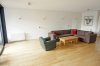
First I tried to make a new photo of the living room but my lens is not wide enough (see second photo). Therefore I decided to modify the original photo. Can anyone explain me how I can do this so it looks natural?

I tried this: selected the wall with lasso and excluded the lamps etc. Tried to play with hue/saturation but this wasn't helpful with all the flowers. Filling the selection with color looks unnatural. Is it possible to use (part of) the new photo to fill the selection?
 

Attachments

  • with_flowers.jpg
    with_flowers.jpg
    2.7 MB · Views: 5
  • white.jpg
    white.jpg
    969.6 KB · Views: 3
Dear Scarmack,

Thanks for your quick reply, but this is not exactly what I mean. This youtube movie is about creating a panorama photo. What I mean is that I'd like to change the wall color of the first photo. Maybe it is possible to do so using the merge function, but I can't see how. Can you explain it further please?
 
You can select the lights on the wall, the radiator or heater make a copy of those on a separate layer and then at a blank layer above the wall itself, paint it the color you want that low resolution to be a pain in the ask though
 
View attachment 40370
hears about 10 minutes worth you can tweak it, make it better, my selection process wasn't a concern just a quick select. use these layers and colors on the top layers to get it where you want or photo filter to get that color using preserve luminosity checked
 
Here's my very quick attempt at it.

Screen Shot 2013-12-18 at 7.59.25 PM.png

Use the Pen Tool To make your selection.
Once you have your selection, add a new layer and fill the selection with colors sampled form other walls.
Once you have a uniform color that you like, create a new layer and add a linear gradient with the Gradient Tool set to foreground to transparent, again made with sampled colors from the other walls.
Also on new layers, add the lighting, shading, and shadows on the light fixtures with the Brush Tool with the opacity and flow set down low.
Finish off the edges by blending with the Smudge Tool set to about 14%.
 
Last edited:
Hi Sam,
Looks good to me. I managed to make a Pen selection, but failed to 'fill the selection with colors sampled from other walls'. I can select one color but it looks like you filled the wall with a blend of colors. How can i do this (again I'm new to photoshop, sorry)? I googled on blend fill photoshop but didn't find the solution.

Idad,
Thanks for your reply. Unfortunately I couldn't open your attachment.
 
Hey Primus,

I filled the wall with one solid color only! Once I had the selection made with the Pen Tool, on a new layer, I filled it with plain white, this became what I call a template so I don't lose my selection. You can also just save the selection. I turn this layer off.

I added a new layer and Command + clicked the white (template) layers thumbnail to re-activate the wall selection for the new layer. From here I selected the Brush Tool and began sampling the surrounding walls one color at a time. You do this by pressing alt/option (the eyedropper will appear) and mouse clicking to sample the color which will become your new foreground color. Then press alt/option + delete to fill the selection. I did this until I found a sample that I was happy with. I would tell you where the best sample came from, but I don't remember!

The rest of the shading on the wall came from the gradients I added. For these, I created a new layer and I again activated the selection (if it was de-selected), I just sampled the the wall next to the cow painting in an attempt to match the subtle shading. I then made a linear gradient from the back of the wall towards the front. It took me several tries before I though it looked acceptable. I also added a Radial gradient next to the couch to simulate a shadow. Because we placed these on a separate layer, you can adjust opacity, saturation, etc.

I created a new layer and used the Brush Tool to add the subtle shadows next to the ceiling and behind the light fixtures. I also added the highlighted area about midway on the ceiling that would have shone over onto the wall.
 
Here's my very quick attempt at it.

View attachment 40379

Use the Pen Tool To make your selection.
Once you have your selection, add a new layer and fill the selection with colors sampled form other walls.
Once you have a uniform color that you like, create a new layer and add a linear gradient with the Gradient Tool set to foreground to transparent, again made with sampled colors from the other walls.
Also on new layers, add the lighting, shading, and shadows on the light fixtures with the Brush Tool with the opacity and flow set down low.
Finish off the edges by blending with the Smudge Tool set to about 14%.

Wtf man!!!!! WOOOOW!!!!! You're a MASTER MAN!!! Daaamn!!! :) :) :)
 

Back
Top