What's new
Photoshop Gurus Forum

Welcome to Photoshop Gurus forum. Register a free account today to become a member! It's completely free. Once signed in, you'll enjoy an ad-free experience and be able to participate on this site by adding your own topics and posts, as well as connect with other members through your own private inbox!

Color inside tools isn't showing o.O


shurgard

Active Member
Messages
32
Likes
4
Hey, my question,
Im working on a RGBA .DDS file as i do more often, and at some point something happend.
And now i can't see the color inside the tools no more that im using on the image. Though i can still
use the tool and the outline of it is there aswell. But for tools like (my favorite) the clone stamp tool,
it can be a bit difficult.
Funny thing is, this is only on the alpha channel.

If anyone knows how to make me see inside the selection tool again, like usual
that would make it a lot more fun again.
 
It is the color im copying with the clonestamp that isnt showing. this also goes for the other tools,
pencil dosn't show color in it aswell for example. As it all of a sudden went nuts on all my tools im guesing it
aint in the clone source tab. But uhm how do i get to that clone source tab window/tab?
Never seen it i believe, that looks really helpfull.
 
You said alpha channel? Alpha channels are not in color, only black to white and shades of grey in between.
 
Unless your pencil is set to "BEHIND" mode or opacity is set to 0.

You mentioned - using on the Alpha channel.... If your using black, it won't show. If you use white on the alpha channel, it deletes the channel mask.
 
Yes black and white aint no colors, thats true. But its about the black/grey and white. I can't see the black/grey and
white in the tools im using. The tool only shows the border of the tool and no black/grey/white in them. Usually when
i Alt + left-click when i am with the clone stamp. The part im cloning shows up in the clone stamp selection tool under
my mouse pointer. Now it just stays a empty clone stamp circle, showing the black/grey/white of the image im going
over with the mouse pointer.

04-17-00036.jpg

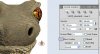
In the screenshot the lower arrow shows how my mouse pointer normally shows. After i did a Alt-left click.
Now it is like in the upper arrow, nothing showing there. (Except the border of the tool that dosnt show in my screenshot).
 
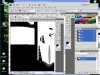
Opacity is set to 100% (screenshot). The behind option. dont know yet.
 
Found the behind option which isnt availeble to activate at the moment. Set that normal to overlay.
But then next to my bugged selection thing, it also dosnt seem to put any black grey and white
on my image no more. (looks like clone stamp/pencil/all tools dont work no more on that setting).

Still its weird, on my RGB all my tools(clone stamp and so) do show my selection i made.
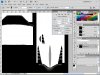
Its only on the alpha channel where those same tools dont show. Im guesing it must have
something to do with the settings of the alpha channel only.
 
04-17-00038.jpg

Found the clone source tab. Looks the same as yours. :(
 
About now any sollution would be fine by me, so yes.
But uhm im holding down Ctrl+Alt+Shift left click mouse on PS icon, and uhm the settings
for where my PS icon is and so opens up.
 
Doing that, not working out yet. I will get it to reset or so soon enough im sure.
Will let you know here though probably tomorrow.
Learnt a great deal all together, clone source tab, reset, more and some stuff i came across,
while searching for that. And thx for not giving up and being understanding to some noobishnes.
:lol:
 
Ok got PS to reset. And the alpha channel/tools are working again like they used to.
Happy bout that, though i still keep looking for were that option in PS is.
Could be handy, o well to the drawing board again :cheesygrin:
 

Back
Top