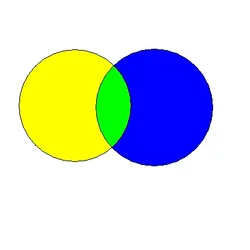
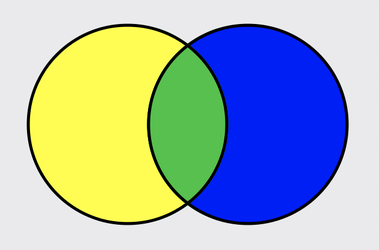
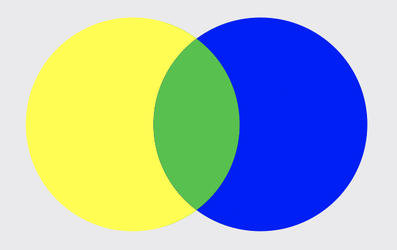
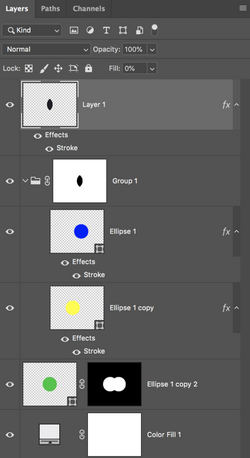
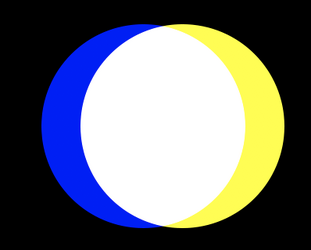
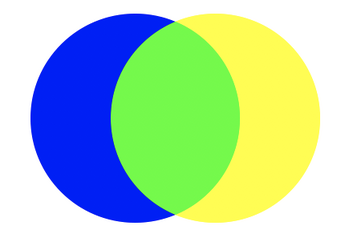
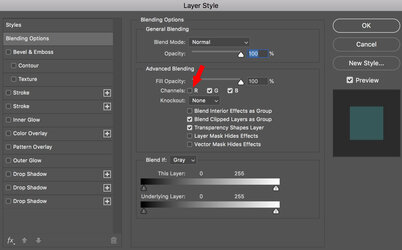
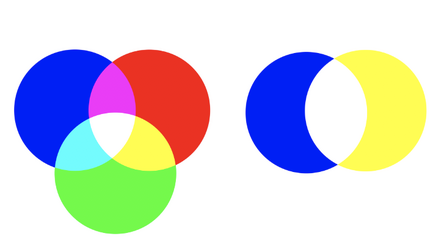
Here's the cheat!
Open a new document. The larger the better. This one is 2500px x 2000px
Set the first or bottom layer to a background color, I used an off white. This technique works on any color background.
Create a new layer. Using the Ellipse Tool, create an ellipse/circle. Choose Green for it's color.
Position it in the center. (Note: You can convert this to a Smart Object to store multiple colors that can be changed with a single click!)
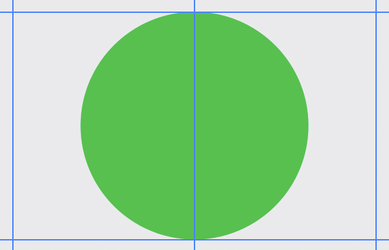
Create a new layer above the Green Circle layer and repeat the process of creating a new ellipse/circle. Choose Yellow for it's color.
Position it to the left. (Note: You can convert this to a Smart Object to store multiple colors that can be changed with a single click!)
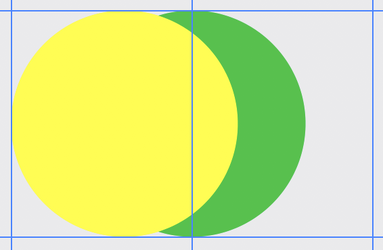
Create a new layer above the Yellow circle layer and repeat the process of creating a new ellipse/circle. Choose Blue for it's color.
Position it to the right. (Note: You can convert this to a Smart Object to store multiple colors that can be changed with a single click!)
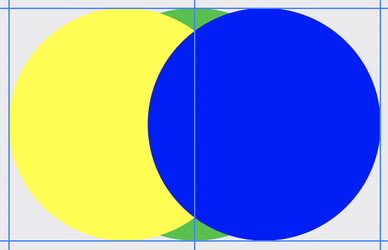
When done, hold down the shift key and click/highlight the Yellow and Blue circle layers, then hit Cmd/Cntrl + G to group these two layers.
Name the group "Blue & Yellow Ellipse/Circles".
We have to hide the top and bottom of the Green circle. We do this by making a selection and then placing a layer mask on the Grouped layer.
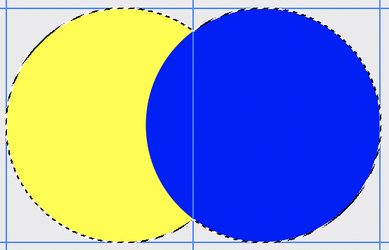
Now hold the Cmd/Cntrl key and click on the Blue Circle layers thumbnail to make a selection, then hold the Shift + Cmd/Cntrl keys together and click on the Yellow Circle layers thumbnail.
Your selection should look like this.......
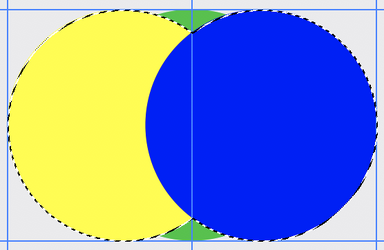
Then hit the Shift + I (for Invert) key to invert the selection.
Should look like this....
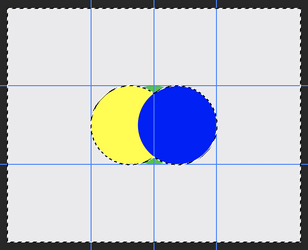
Now add a layer mask to the Green Circle layer.
It should look like this.
With the Blue and Yellow layers turned off, the Green layer should look like this.....
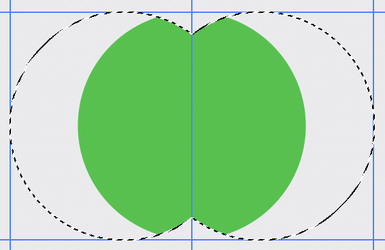
Hit Cmd/Cntrl + D to deselect. Turn the Blue and Yellow layers back on!
Now we have to create a selection of the area where the Blue and Yellow circles intersect.
Select/Highlight the group layer named "Blue & Yellow Ellipse/Circles".
Hold down the Cmd/Cntrl key and click on the Blue Circle layers thumbnail to make a selection, then hold the Shift + Opt/Alt + Cmd/Cntrl keys together and click on the Yellow Circle layers thumbnail.
The selection should look like this.....
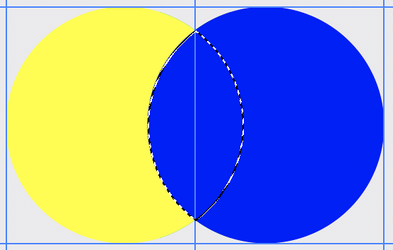
Add a layer mask to the grouped layer named "Blue & Yellow Ellipse/Circles"
Hit Cmd/Cntrl + D to deselect if needed.
It should now look like this.....Done!
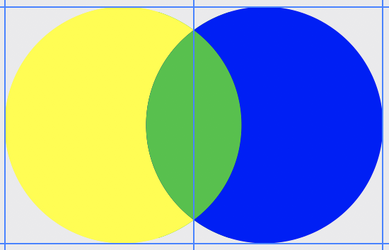
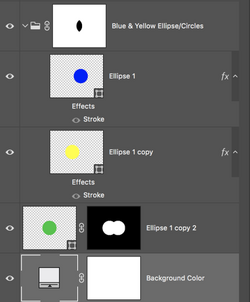
All of the colors are editable by double clicking any of the Ellipse/Circle (Shape) layers!
(Note: Or.......you can use Smart Objects on the ellipse layers to store multiple colors that can be changed with a single click!)
If you want a stroke............that's another tutorial.