What's new
Photoshop Gurus Forum

Welcome to Photoshop Gurus forum. Register a free account today to become a member! It's completely free. Once signed in, you'll enjoy an ad-free experience and be able to participate on this site by adding your own topics and posts, as well as connect with other members through your own private inbox!

Colorize fireworkbrush (with natural glow)


Jiff

Member
Messages
5
Likes
1
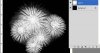
Hey, I downloaded some brushes from Deviantart and this is how they look in the author's info:
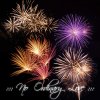
Fireworks_Brushes_by_NoOrdinaryLove.jpg

When I use the brush, it's white and has the contrast/structure in it. But the question is - how do I colorize it in a natural way? I'm not an expert and went for the hue/saturation panel, but it just covers the whole brush and it looks so unreal.

So do you know how the author got this cool colorful effect? (often lighter in the middle and glowing parts in the end etc).

Thanks!
 

Attachments

  • Fireworks_Brushes_by_NoOrdinaryLove.jpg
    Fireworks_Brushes_by_NoOrdinaryLove.jpg
    40.6 KB · Views: 13
You use a white (center) to the desired colour radial gradient I think would be the best solution, would you mind linking to the brush ( if its free ofc) so I could try and colorize it ?

thanks
 
I also thought of a radial gradient at first, but those fireworks aren't alone at some times and therefore you can't use a gradient. However the reason to why I didn't link to the brushes was that the rules says it's "considered as spam within the first 8 posts". But I'll pm those who wants it ;)
 
You might try making your bursts into smart objects, and going to filter>render>lighting effects, probably omni, and give that a shot. Then maybe duplicate the layer and experiment with different blend modes such as vivid light or linear dodge. The reason for the smart object is that you can then erase or lessen the effects in places using the filter mask which you don't get with a regular layer.

Or try contacting the author and asking. :mrgreen:
 
Well first off, the images you see on the deviant art page are the original fireworks bursts from which the brushes came. I've never really been much for these types of brushes. Sure, they have their uses, but if you're going to add fireworks to an image, why bother with the brush version (other than it's free of course)? Simply search for stock images of fireworks (you can purchase some very cheap on sites like istockphoto if you're using the images commercially). The backgrounds of fireworks images are typically black so simply place the fireworks image on a layer and set the layer to "screen" (as long as you're working in RGB). No clipping, no painting required.
 
Apply layer styles...

Create new document with Black background.

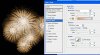
Select a brush with white as its color. On a new layer, click once.

br1.jpg

Apply layer style - Inner glow. These are my settings used. Play around with it to get the effect you want.

br2.jpg


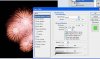
To add more pizazz, duplicate the layer . And adjust the Layer Style Blending Options. Play with the RGB channels fror different effect.

br3.jpg

Adjust layer opacity of layers to your liking...

br4.jpg

This is just a guide. Experiment further on my procedure. I'm sure you can get a better effect....

Hope this helps.
 
Thanks for those great tips! I'll try them out tomorrow and then I'll return with a result or question if I need any further help :)
 
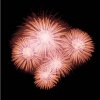
Hmm, I've experimented for a short while now and this is was I ended up with:

2012_celebration.png2012_celebration_2.png

So, with this result it's a question of want you are looking for. If you want a realistic look then just going for an real image is the easiest choice, however if you want to make one type of "own style" fireworks, then you'll go for the brushes. Though all brushes doesn't redeem a nice effect with layer styles.
 
Haha, this isn't really how I saw/perceived the pictures in PS, but... you should always check the result in the finished format too :P
 

Back
Top