What's new
Photoshop Gurus Forum

Welcome to Photoshop Gurus forum. Register a free account today to become a member! It's completely free. Once signed in, you'll enjoy an ad-free experience and be able to participate on this site by adding your own topics and posts, as well as connect with other members through your own private inbox!

Cropping outside canvas


anneke

Member
Messages
7
Likes
0
I've recently started working with Photoshop version 25.12.3.
If I resize or shift the image on a layer so that a part of it extends beyond the canvas, that portion outside the canvas is cropped. How do I keep the entire image on the layer so that I can see the full content again when I resize or shift the image? The Photoshop version I used to use always saved the entire image.
 
If I resize or shift the image on a layer so that a part of it extends beyond the canvas, that portion outside the canvas is cropped.
In the PSD, if you "shift" the image outside or beyond the edge of the canvas, it's NEVER cropped and it can always be moved back into view. This does not make sense as is, there must be more to this story.

However, Ps will only crop the image permanently if you save the file in any other format than as a PSD. As long as you save the image file as a PSD, you can always open the PSD later and shift the "extended" portion of the image hidden off the canvas, back into view.

How do I keep the entire image on the layer so that I can see the full content again when I resize or shift the image?
You will need to explain the exact step by step procedure that you're doing as this should not be an issue. Post images! You can also upload or link the PSD file so we can take a look at it.
 
I've recently started working with Photoshop version 25.12.3.
If I resize or shift the image on a layer so that a part of it extends beyond the canvas, that portion outside the canvas is cropped. How do I keep the entire image on the layer so that I can see the full content again when I resize or shift the image? The Photoshop version I used to use always saved the entire image.
Convert your Object\Layer into a "Smart Object"
 
Convert your Object\Layer into a "Smart Object"
I considered this as well. It would certainly help in resizing. But I decided it would be a lazy fix for something that should not be a problem. The real question is that there shouldn't be a problem. The OP needs to explain how this could be happening.
 
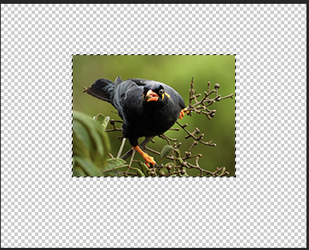
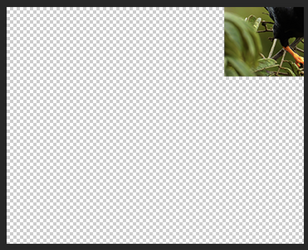
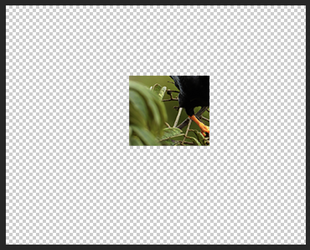
In trying to recreate the issue, for now, the only way I can do it is to make a selection of the image, or a portion of the image, and then move or resize it off the canvas............it will then "crop" off any portion outside the canvas.

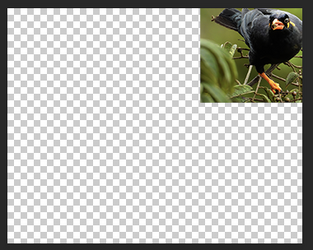
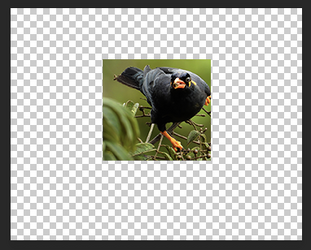
Full Image inside canvas that is SELECTED (with marching ants)
Screen Shot 2025-08-06 at 10.45.15 AM.png

Selected image moved off canvas. Deselected (Cmd/Cntrl + D)
Screen Shot 2025-08-06 at 10.45.44 AM.png

Image moved back into canvas area, now it's cropped.
Screen Shot 2025-08-06 at 10.45.52 AM.png

This will never happen of the image is not selected when moved or resized.

However, making a selection and moving/resizing it will not result in a crop if the image is converted to a smart object first. But I already knew this.
 
Yes it works, but I'm curious of why you had the problem in the first pace. It would be nice to know so future readers don't make the same mistake.
 
I switched to a new desktop on which I installed Photoshop-version 25.12.3. Sorry, but I don't know which version I used on my old desktop, but with that version my images were never cropped outside the canvas.
 
I switched to a new desktop on which I installed Photoshop-version 25.12.3.
This was not the reason you were having the issue. There's was no change in the versions that would cause this problem. We really need to see either screen shots or a PSD file where you were having the problem. You must still have the PSD file since you claim that converting the image layer to a smart object did work for you. I would like to know why you were having the problem in the first place. It may be something new that needs to be addressed.
 
I've since found a better solution. If you use the Move tool and deselect the checkbox next to Auto Select in the top bar, no object will be cropped if it extends beyond the canvas. This must have been so in my former Photoshop on my old desktop, because then no object was cut off when it came outside the canvas.

Anneke
 
I've since found a better solution. If you use the Move tool and deselect the checkbox next to Auto Select in the top bar, no object will be cropped if it extends beyond the canvas. This must have been so in my former Photoshop on my old desktop, because then no object was cut off when it came outside the canvas.
No. Having "Auto Select" on or off on the Move Tool, does not crop or stop cropping anything within the layer as you have described!!! This is very misleading!

No version of Photoshop will crop an image resized or moved outside the canvas border within a LAYER unless it has been made into a selection! This seems to be the only thing you could have done unless you can show us otherwise!


I'm not saying that it did not happen for another reason, but I can't reproduce what you have described, so I don't know for sure. PLEASE post the PSD file where you were having the trouble! It's the only way we can tell you why you may have had this issue!
 
I'm sorry, but I no longer have the PSD file I was having trouble with. By the way, I wasn't referring to cropping within the layer, but to cropping outside the canvas.
 
By the way, I wasn't referring to cropping within the layer, but to cropping outside the canvas.
Yes........this was always understood. I've never thought otherwise. Did you not read my explanation in post #5 ???

the only way I can do it is to make a selection of the image, or a portion of the image, and then move or resize it off the canvas............it will then "crop" off any portion outside the canvas.


Just so you and anyone else are not confused, my statement above says, "cropping anything within the layer" referrers to cropping any portion of the image contained within the layer in the layers panel..............it assumes you understand that it's cropping off portions moved outside the layer boundaries or what you are calling the canvas.

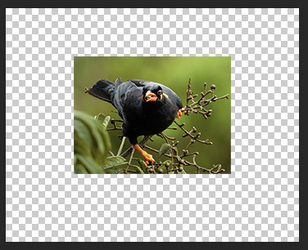
This is an image contained within a layer.
Screen Shot 2025-08-18 at 8.32.11 AM.png

This is STILL an image contained within the layer that has been moved so that portions of the image is outside the layer boundary or canvas.
Screen Shot 2025-08-18 at 8.32.30 AM.png

This is STILL the same image contained within the layer that was cropped outside the canvas, it's still within the LAYER!
Screen Shot 2025-08-18 at 8.34.58 AM.png
 
I'm sorry, but I no longer have the PSD file I was having trouble with.
Of course. Not a problem.

Just for the sake of anyone reading this thread in the future, my above conclusion still stands. No version of Photoshop will crop an image resized or moved outside the canvas border within a LAYER unless it has been made into a selection! This seems to be the only thing that could have happened in this situation since the OP can not show us how they had the problem to begin with.

However, if you wish to make selections of an image within a layer and then move them outside the layer boundaries or canvas, and you don't want it cropped, convert it into a smart object first.

Using the auto select function on the Move Tool will not change anything. Auto select does not make a selection of the layer contents, it just allows your to click on any object/assets within the canvas and the objects layer will be highlighted or SELECTED in the layers panel.
 

Back
Top