
Smokey2011
Well-Known Member
- Messages
- 119
- Likes
- 5
Hi everyone, I posted a similar topic to this quite a while back and since then I've had several private messages posted to me about it, so I'd like to re-iterate for those who haven't heard about this.
There is now a way to over-ride the existing PS toolbar with another toolbar entirely customized by you the user. I always found the default toolbar (the bar with the brush icon, the magic wand icon, the eraser icon, etc) to be too small and jumbled. Keyboard shortcuts are always a good way to over-ride the default toolbar, but again, using the keyboard shortcuts interrupts your workflow by always having to look away from your screen and onto the keyboard- no big task of course, but it is an interruption to workflow and concentration.
I have a customizable toolbar which allows you to draw your own icons in Photoshop, then add all these icons onto one toolbar which acts as the default toolbar, but 100% created by you.
Features:
-the buttons (icons) you create can be as big or small as you like, and can be in full color
-every time you click a new icon (tool or command), you can have the toolbar make a sound of your choice ( a 'beep' or 'click', or even a song you like, for example)
-the toolbar can be moved anywhere on the screen, and it can auto-disappear when you move your mouse pointer away from it and then auto-appear when you hover the pointer on top of it again
-there is no limit to the amount of icons you add to it
-you can add ANY keyboard shortcut to the toolbar. This includes tools and commands (flip canvas, duplicate layer, merge layers, rotate canvas, cut/paste, undo, etc.)
-you don't actually have to click the icons if you don't want to; you can set it up so that all you do is hover your pointer on top of the icon and it will execute that tool or command
-this custom toolbar and the standard toolbar are both operational at the same time, so you can use both at once
-the best part: the toolbar software is free of charge; it was developed by independent programmers
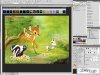
I have attached a screen-capture of my version of the toolbar. Again, the sky is the limit; you can design your icons any way you wish, any colors, any size. It's all up to your creativity.
My personal toolbar appears right above the picture of Bambi with the skunk and rabbit. From left to right, I'll name the shortcuts I have used in this particular toolbar:
Starting with the blue finger on the far left:
-Smudge tool
-Reduce brush size by 1px
-Enlarge brush size by 1px
-Zoom Out
-Zoom In
-Step Backward shortcut
-Step Forward shortcut
-Eraser tool
-Color picker
-Mixer brush tool
-Brush tool
-TAB keyboard shortcut
-Layer/Merge Layers... shortcut
-Layer/Duplicate Layer... shortcut
-Window/Arrange/New Window For... shortcut
-Image/Image Rotation/Flip Canvas Horizontal... shortcut
-Image/Adjustments/Levels... shortcut
-Image/Adjustments/Hue/Saturation... shortcut
-SHIFT button (this button stays held down and acts as shift until you press it again to release it)
I don't have the usual cut/paste or copy icons as I don't use them often. If I did, I'd just draw up a scissors picture in Photoshop and use that for the cut command, etc.
All icons below were created by myself in Photoshop to look the way I wanted.
The only real disadvantage I can see here is that it takes up just a little bit of extra desktop space, depending on how large you make your icons. They can be huge or small, but either way you're giving up a small amount of space. The fix for this is to set the toolbar to "auto-hide" and it will auto-minimize in its exact same location when you move the mouse pointer away from it, clearing up desktop space. This program really is flawless as far as I have seen. I actually never use the standard toolbar anymore; it's so much easier and more direct to select my tool or command from this toolbar using the custom colors and images I created.
Also, the toolbar works with anything in windows, and any program you choose, not just photoshop.
You can design icons for all your music folders/songs, and add these shortcut icons to the toolbar and when you press the icons, your folders or music will immediately load up. If you work with music software, you can add all your shortcuts to a separate toolbar, and open up both of them at the same time (the photoshop one and the music one). So you would have 2 toolbars running at once, each for different programs. No limit to how many you can run at once. It really is amazing.
Click on the image below to enlarge it:
There is now a way to over-ride the existing PS toolbar with another toolbar entirely customized by you the user. I always found the default toolbar (the bar with the brush icon, the magic wand icon, the eraser icon, etc) to be too small and jumbled. Keyboard shortcuts are always a good way to over-ride the default toolbar, but again, using the keyboard shortcuts interrupts your workflow by always having to look away from your screen and onto the keyboard- no big task of course, but it is an interruption to workflow and concentration.
I have a customizable toolbar which allows you to draw your own icons in Photoshop, then add all these icons onto one toolbar which acts as the default toolbar, but 100% created by you.
Features:
-the buttons (icons) you create can be as big or small as you like, and can be in full color
-every time you click a new icon (tool or command), you can have the toolbar make a sound of your choice ( a 'beep' or 'click', or even a song you like, for example)
-the toolbar can be moved anywhere on the screen, and it can auto-disappear when you move your mouse pointer away from it and then auto-appear when you hover the pointer on top of it again
-there is no limit to the amount of icons you add to it
-you can add ANY keyboard shortcut to the toolbar. This includes tools and commands (flip canvas, duplicate layer, merge layers, rotate canvas, cut/paste, undo, etc.)
-you don't actually have to click the icons if you don't want to; you can set it up so that all you do is hover your pointer on top of the icon and it will execute that tool or command
-this custom toolbar and the standard toolbar are both operational at the same time, so you can use both at once
-the best part: the toolbar software is free of charge; it was developed by independent programmers
I have attached a screen-capture of my version of the toolbar. Again, the sky is the limit; you can design your icons any way you wish, any colors, any size. It's all up to your creativity.
My personal toolbar appears right above the picture of Bambi with the skunk and rabbit. From left to right, I'll name the shortcuts I have used in this particular toolbar:
Starting with the blue finger on the far left:
-Smudge tool
-Reduce brush size by 1px
-Enlarge brush size by 1px
-Zoom Out
-Zoom In
-Step Backward shortcut
-Step Forward shortcut
-Eraser tool
-Color picker
-Mixer brush tool
-Brush tool
-TAB keyboard shortcut
-Layer/Merge Layers... shortcut
-Layer/Duplicate Layer... shortcut
-Window/Arrange/New Window For... shortcut
-Image/Image Rotation/Flip Canvas Horizontal... shortcut
-Image/Adjustments/Levels... shortcut
-Image/Adjustments/Hue/Saturation... shortcut
-SHIFT button (this button stays held down and acts as shift until you press it again to release it)
I don't have the usual cut/paste or copy icons as I don't use them often. If I did, I'd just draw up a scissors picture in Photoshop and use that for the cut command, etc.
All icons below were created by myself in Photoshop to look the way I wanted.
The only real disadvantage I can see here is that it takes up just a little bit of extra desktop space, depending on how large you make your icons. They can be huge or small, but either way you're giving up a small amount of space. The fix for this is to set the toolbar to "auto-hide" and it will auto-minimize in its exact same location when you move the mouse pointer away from it, clearing up desktop space. This program really is flawless as far as I have seen. I actually never use the standard toolbar anymore; it's so much easier and more direct to select my tool or command from this toolbar using the custom colors and images I created.
Also, the toolbar works with anything in windows, and any program you choose, not just photoshop.
You can design icons for all your music folders/songs, and add these shortcut icons to the toolbar and when you press the icons, your folders or music will immediately load up. If you work with music software, you can add all your shortcuts to a separate toolbar, and open up both of them at the same time (the photoshop one and the music one). So you would have 2 toolbars running at once, each for different programs. No limit to how many you can run at once. It really is amazing.
Click on the image below to enlarge it:
Last edited: