scrimshanker
New Member
- Messages
- 2
- Likes
- 0
Mac OS Sequoia - 15.6, Photoshop 26.10.0 Release.
Epson L18050 Ecotank printer.
After a hard drive crash I had to reload my Photoshop application, and printer drivers.
Initially, it seemed that everything was working as it should
When I select to print from Photoshop, in the 'Photoshop Print Settings' dialog box, everything looks normal.
I select 'Photoshop manages colors', I have the correct Paper setting in 'Printer Profile'
I typically use 'Hard Proofing'
HOWEVER - when I select 'Print Settings' at the top of the 'Photoshop Print Settings' dialog box, a much reduced menu is presented.
'Paper Size', 'Layout', and 'Paper Handling' are all as they should be.
Under 'Printer Options' > 'Color Matching' - 'Epson Color Controls' is correctly selected.
BUT when I select 'Print Settings' - I was previously presented with a detailed menu of options which included choices for 'Borderless', 'Sharpen', 'Remove Red Eye' etc etc.
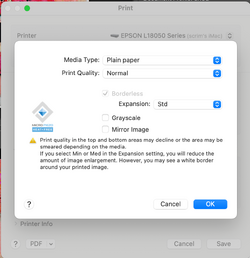
Now, instead, I get an extremely basic popup window that only gives me a couple of options. 'Media Type', 'Print Quality', and an option for 'Borderless' printing
See Screenshot below.
I don't know that my results are much different - but I really liked having the granular control over 'Print Settings' I had previously.
Am I missing something? Have I made some fundamental error in setting up Photoshop or my Printer?
Grateful for any input
Epson L18050 Ecotank printer.
After a hard drive crash I had to reload my Photoshop application, and printer drivers.
Initially, it seemed that everything was working as it should
When I select to print from Photoshop, in the 'Photoshop Print Settings' dialog box, everything looks normal.
I select 'Photoshop manages colors', I have the correct Paper setting in 'Printer Profile'
I typically use 'Hard Proofing'
HOWEVER - when I select 'Print Settings' at the top of the 'Photoshop Print Settings' dialog box, a much reduced menu is presented.
'Paper Size', 'Layout', and 'Paper Handling' are all as they should be.
Under 'Printer Options' > 'Color Matching' - 'Epson Color Controls' is correctly selected.
BUT when I select 'Print Settings' - I was previously presented with a detailed menu of options which included choices for 'Borderless', 'Sharpen', 'Remove Red Eye' etc etc.
Now, instead, I get an extremely basic popup window that only gives me a couple of options. 'Media Type', 'Print Quality', and an option for 'Borderless' printing
See Screenshot below.
I don't know that my results are much different - but I really liked having the granular control over 'Print Settings' I had previously.
Am I missing something? Have I made some fundamental error in setting up Photoshop or my Printer?
Grateful for any input