
OK, in case anyone cares - I finally wrote that plugin and it's available for free.
download
MD5: 206B7AF0169834BBB9A0C1CBAAFD92A6
Plugin extracts transparency channel and places it into layer mask. Instructions:
1) place ExtractTransparency.8bf into your \plug-ins\filters\ folder
2) restart photoshop, open your image
3) add empty layer mask to desired layer by clicking corresponding button in Layers palette or choosing Layer > Layer mask > Reveal all menu (it's impossible to do that from a plug-in)
4) this is important - select layer instead of layer mask by clicking on its icon in Layer palette (it's also impossible to do that from a plug-in)
5) Select Filter > Torvin > Extract transparency
voila!
here are some screenshots:
right after completing step #4:
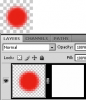
Notice the white layer mask. Also notice that focus is around layer, not mask
after step #5:
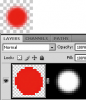
Notice the picture visually hasn't changed a bit. Notice the layer's pixels are now opaque (except those which had opacity=0%, I left them transparent). Notice the layer's mask now contains transparency - you can edit it, discard or apply back to the layer.
Enjoy! Please notice, plugin only works with grayscale, RGB and CMYK 8bit/channel images for now.
Questions, suggestions, bugreports are welcome via PM or via email: torvin{a}list.ru
PS: You may also need vcredist8 to run this. Download it here for free: http://www.microsoft.com/download/en/details.aspx?id=5638
download
MD5: 206B7AF0169834BBB9A0C1CBAAFD92A6
Plugin extracts transparency channel and places it into layer mask. Instructions:
1) place ExtractTransparency.8bf into your \plug-ins\filters\ folder
2) restart photoshop, open your image
3) add empty layer mask to desired layer by clicking corresponding button in Layers palette or choosing Layer > Layer mask > Reveal all menu (it's impossible to do that from a plug-in)
4) this is important - select layer instead of layer mask by clicking on its icon in Layer palette (it's also impossible to do that from a plug-in)
5) Select Filter > Torvin > Extract transparency
voila!
here are some screenshots:
right after completing step #4:
Notice the white layer mask. Also notice that focus is around layer, not mask
after step #5:
Notice the picture visually hasn't changed a bit. Notice the layer's pixels are now opaque (except those which had opacity=0%, I left them transparent). Notice the layer's mask now contains transparency - you can edit it, discard or apply back to the layer.
Enjoy! Please notice, plugin only works with grayscale, RGB and CMYK 8bit/channel images for now.
Questions, suggestions, bugreports are welcome via PM or via email: torvin{a}list.ru
PS: You may also need vcredist8 to run this. Download it here for free: http://www.microsoft.com/download/en/details.aspx?id=5638
Last edited: